Advanced Part 1: Building Custom LangGraph Agents for watsonx Orchestrate
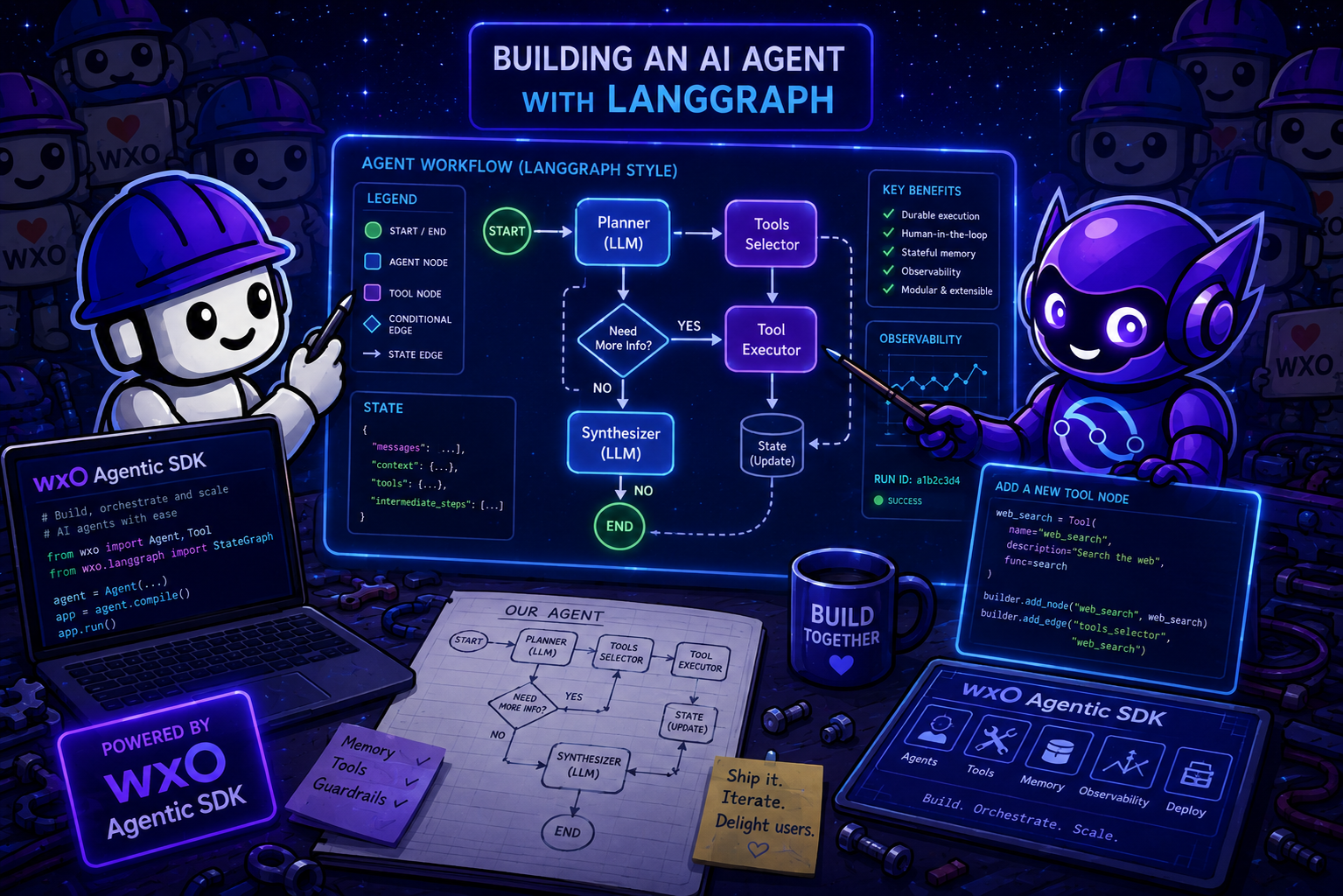
Duration: 75–90 minutes
Difficulty: ⭐⭐⭐ Advanced
Prerequisites: Part 0 - Setup & Environment done.
Overview
This part teaches you to build fully custom LangGraph agents that run natively inside watsonx Orchestrate. You'll go from a minimal "Hello World" graph to a production-ready agent with LLM tool-calling, external API credentials, in-session state persistence, and cross-session user memory.
What You'll Build
| Agent | What it demonstrates |
|---|---|
echo_agent |
Minimal pipeline verification — no LLM, no SDK, pure LangGraph skeleton |
simple_llm_agent |
Pure LangGraph withChatOpenAI + Groq backend — no Agentic SDK, built with Bob |
research_agent |
Full production agent —ChatWxO, tools, connections, checkpointer, memory |
Why LangGraph on wxO?
| Use LangGraph when... | Use a native wxO agent when... |
|---|---|
| You need custom graph topology (loops, complex branching, parallel nodes) | You want YAML-first authoring with tools, knowledge bases, and guidelines |
| You're bringing anexisting LangGraph codebase to wxO | You need multi-agent orchestration with collaborator agents |
| You need fine-grained control over the reasoning loop | Speed and cost matter — native agents are faster and cheaper |
| You have custom in-graph state logic that can't live in message history | Agentic workflows cover your orchestration needs |
Native wxO agents are not just for simple tasks. They support multi-agent collaboration, knowledge bases, guardrail plugins, agentic workflows, scheduling, and deployment to channels — all without writing Python. Use LangGraph when you genuinely need custom graph topology or are porting an existing LangGraph codebase.
Using Bob for this Lab
Bob has a built-in wxo-langgraph skill pre-loaded in your workspace (from the config bundle). It gives Bob deep knowledge of the LangGraph-for-wxO entry point contract, platform constraints, credential patterns, checkpointers, the memory API, and common errors. The skill activates automatically when the topic matches — just ask naturally, no command needed.
Bob also knows all 11 platform constraints (messages-only persistence, 50 MB package limit, uncompiled graph requirement, etc.) so any code it generates is platform-correct by default.
Example prompts — one per section
| When you're on… | Ask Bob… |
|---|---|
| Section 2 — Hello World | "Show me the minimal agent.yaml and create_agent structure for a wxO LangGraph import" |
| Section 3 — Pure LangGraph | "Help me set up ChatOpenAI with a Groq backend using a wxO connection" |
| Section 4 — ChatWxO | "Show me how to switch from ChatOpenAI to ChatWxO — what changes?" |
| Section 5 — Tools | "What's the difference between lc_tool and wxO @tool? Show me a ReAct tool example" |
| Section 6 — Credentials | "How do I read my news_api connection key inside the agent code?" |
| Section 7 — Checkpointers | "When should I use SQLite vs PostgreSQL checkpointer on wxO?" |
| Section 8 — Memory | "Show me how to read and write cross-session user memory with the Agentic SDK" |
| Debugging | "My agent import fails with a 50 MB error — how do I fix the package size?" |
wxO LangGraph Limitations (Read First)
These are hard platform constraints — not bugs, not things to work around with hacks.
| Limitation | Detail |
|---|---|
| Python only | TypeScript/JavaScript LangGraph is not supported |
Only messages persists between turns |
Custom state fields reset every turn — onlymessages: Annotated[List[BaseMessage], add_messages] survives |
| Package size ≤ 50 MB compressed | Exclude.venv/ from the package root |
| Runs inside wxO runtime | Outbound calls require wxO Connections for credentials |
| No direct database access | Persistent state across restarts needs PostgreSQL via a wxO connection |
| SQLite resets on pod restart | Use PostgreSQL for production persistence |
⚠️ Starting from ADK v2.13 — Native agent style deprecation: The
style: default,style: react, andstyle: plannervalues for native wxO agents are deprecated as of ADK v2.13.0. Usestyle: react_corein all native agent YAML files going forward. This does not affect LangGraph agents — they usekind: agent+framework: langgraphand have nostylefield. See Migrating to ReAct Core for details.
Architecture
Minimal — what wxO actually requires (Sections 2–3)
The only thing wxO needs from your code is the create_agent entry point. Everything inside the graph is plain LangGraph:
wxO Chat UI
    │
    ▼  (A2A protocol — handled by wxO automatically)
wxO Runtime
    │
    ▼  create_agent(config: RunnableConfig) ← the one required contract
StateGraph.compile().invoke({"messages": [...]})
    │
    └─ your_node  ──── any Python logic
                  └─── any LLM (ChatOpenAI, ChatAnthropic, …)
Full integration — what Sections 4–8 build toward
Once you add wxO platform services, the graph gains access to managed LLMs, secure credentials, persistent memory, and more:
wxO Chat UI
    │
    ▼  (A2A protocol — handled by wxO automatically)
wxO Runtime
    │
    ▼  create_agent(config: RunnableConfig)
StateGraph.compile().invoke({"messages": [...]})
    │
    ├─ agent_node  ──── ChatWxO ──── wxO AI Gateway ──── LLM    (Section 4)
    │                │
    │                └─ ibm_watsonx_orchestrate_sdk
    │                       ├─ client.memory.search()            (Section 8)
    │                       └─ client.context.compress()         (Section 8)
    │
    └─ tool_node  ──── my_tool()                                 (Section 5)
                  └─── get_news_headlines() ── news_api env var  (Section 6)
Section 0 — What is LangGraph? (15 min)
Background
LangGraph is an open-source library built by the LangChain team (released January 2024) for building stateful, graph-based agent workflows in Python and TypeScript. It has quickly become one of the most widely adopted agent frameworks, used by companies including LinkedIn, Uber, GitLab, and Elastic.
The core insight behind LangGraph is that most non-trivial agent behaviour can be modelled as a directed graph — where each node does some work on a shared state, and edges (including conditional ones) control the flow between nodes. This is fundamentally different from a linear chain of prompts.
Core concepts
| Concept | What it is |
|---|---|
StateGraph |
The graph container — defines nodes, edges, and the state schema |
AgentState |
ATypedDict that flows through the graph — every node reads from and writes to it |
| Node | A Python function(state: AgentState) -> AgentState — does work and returns updated state |
| Edge | A directed connection:graph.add_edge("node_a", "node_b") |
| Conditional edge | A routing function that inspects state and returns the next node name |
START / END |
Sentinels marking the graph's entry and exit points |
| Checkpointer | Persists state between invocations (memory, SQLite, PostgreSQL) |
How state flows
Every node receives the full current state and returns a partial state update. The reducer for each field controls how updates are merged:
from typing import Annotated, List, TypedDict
from langchain_core.messages import BaseMessage
from langgraph.graph.message import add_messages

class AgentState(TypedDict):
    # add_messages is the reducer — it appends new messages rather than replacing
    messages: Annotated[List[BaseMessage], add_messages]
The add_messages reducer is the most important one to understand — it means returning {"messages": [new_msg]} appends new_msg to the history, rather than replacing the whole list.
The ReAct loop pattern
The most common LangGraph agent pattern is a ReAct loop (Reason + Act):
START
  │
  ▼
agent_node ──── calls LLM ────► if tool_calls: ──► tool_node ──┐
  ▲                              else: END                       │
  └───────────────────────────────────────────────────────────────┘
from langgraph.graph import StateGraph, START, END
from langgraph.prebuilt import ToolNode

def agent_node(state, config):
    response = llm_with_tools.invoke(state["messages"])
    return {"messages": [response]}

def should_continue(state) -> str:
    last = state["messages"][-1]
    return "tools" if last.tool_calls else "end"

graph = StateGraph(AgentState)
graph.add_node("agent", agent_node)
graph.add_node("tools", ToolNode(tools))
graph.add_edge(START, "agent")
graph.add_conditional_edges("agent", should_continue, {"tools": "tools", "end": END})
graph.add_edge("tools", "agent")   # loop back after tool execution
LangGraph vs alternatives
| LangGraph | LangChain LCEL | Native wxO agent | |
|---|---|---|---|
| Model | Explicit graph (nodes + edges) | Linear pipeline | YAML-configured LLM loop |
| State | Typed, persistent across nodes | None | Conversation history only |
| Branching | Conditional edges | Not built-in | Guidelines + collaborator routing |
| Multi-agent | Manual (call other agents as tools) | Not built-in | First-class (collaborators, agentic workflows) |
| Human-in-the-loop | Native (interrupt) |
Not supported | Agentic workflow user activity nodes |
| Complexity | Medium–High | Low | Low–Medium |
| Best for | Custom graph logic, porting existing LangGraph code | Simple chains | Most production agent use cases |
Why LangGraph became popular
- Deterministic control flow — you know exactly which nodes can be reached from which
- Streaming — built-in support for streaming partial results node by node
- First-class persistence — checkpointer abstraction works with any backend
- Visualisation —
graph.get_graph().draw_mermaid()renders the graph as a diagram - Ecosystem — integrates with every LangChain tool, embeddings, and retriever
The wxO entry point contract
Every wxO LangGraph agent must expose exactly one function:
from langchain_core.runnables.config import RunnableConfig
from langgraph.graph import StateGraph

def create_agent(config: RunnableConfig) -> StateGraph:
    # Build and return an UNCOMPILED graph
    # wxO compiles it internally
    graph = StateGraph(AgentState)
    # ... add nodes and edges ...
    return graph
The function name must be create_agent (or whatever you declare in agent.yaml under entrypoint). wxO calls it at agent startup, passing a RunnableConfig that contains the runtime execution context. The graph must be returned uncompiled — wxO handles compilation.
Section 1 — Architecture & the RunnableConfig Contract (10 min)
How wxO runs a LangGraph agent
- You package your agent directory and import it with
orchestrate agents import --package-root - wxO uploads, zips, and deploys the package inside its runtime environment
- At agent startup, wxO calls your
create_agent(config)factory - wxO injects a
RunnableConfigwith anexecution_contextcontaining: access_token— for authenticating SDK calls back to wxOthread_id— identifies the current conversation threadapi_proxy_url— the full base URL the SDK uses for API calls- The graph processes user messages turn by turn
The Agentic SDK (optional)
ibm_watsonx_orchestrate_sdk is the optional bridge from your LangGraph code to wxO platform services. You only need it when you want wxO-specific features:
from ibm_watsonx_orchestrate_sdk import Client

client = Client.from_runnable_config(config)  # ← standard entry point
# client.memory    → cross-session user memory
# client.context   → conversation compression
from ibm_watsonx_orchestrate_sdk.langchain import ChatWxO

llm = ChatWxO.from_runnable_config(config=config, model="groq/openai/gpt-oss-120b")
You don't need the Agentic SDK to deploy a LangGraph agent on wxO. Sections 2 and 3 demonstrate this explicitly. The SDK becomes valuable in Sections 5–7 when you want wxO-managed LLMs, cross-session memory, or context compression.
The three execution modes
| Mode | When | Client initialisation |
|---|---|---|
runs-on |
Inside wxO runtime (package import) | Client.from_runnable_config(config) |
runs-elsewhere |
External service calling wxO APIs | Client(api_key=..., instance_url=...) |
local |
Developer Edition testing | Client(instance_url="http://localhost:4321", local=True) |
Section 2 — Hello World: Minimal LangGraph Agent (10 min)
Build the simplest possible agent to verify the end-to-end pipeline before adding any complexity. No LLM, no SDK, no external calls — just the scaffolding.
💡 Run this Bob prompt to get started:
Project structure
agents/echo_agent/
├── agent.py          ← create_agent() factory + graph
├── agent.yaml        ← wxO agent specification
└── requirements.txt  ← pinned Python dependencies
📂 The files are in
agents/echo_agent/.
The agent.yaml — key fields explained
spec_version: v1
kind: agent               # not "native" — "agent" for LangGraph package imports
framework: langgraph      # required: tells wxO this is a LangGraph agent

deployment:
  code_bundle:
    entrypoint: "agent:create_agent"
    # Format: "python_module_name:factory_function_name"
    # "agent" = agent.py (without .py extension)
    # "create_agent" = the factory function inside that file
Test locally first
cd agents/echo_agent
pip install -r requirements.txt
python agent.py
# Expected: [Echo @ HH:MM:SS UTC] You said: "Hello from local test!"
Rename the agent to avoid conflicts
⚠️ Important: Because multiple participants share the same watsonx Orchestrate instance, you must add your initials as a postfix to the agent name in
agents/echo_agent/agent.yamlbefore importing to prevent overwriting each other's agents.Open
agents/echo_agent/agent.yamland update thenamefield (e.g., if your initials areJKJ, changename: echo_agenttoname: echo_agent_JKJ):
Import to wxO
From your workspace root directory run:
orchestrate agents import \
  --package-root agents/echo_agent \
  --config-file agents/echo_agent/agent.yaml
Verify:
Test your agent using orchestrate chat ask (replace <your_initials> with your actual initials):
You should see a timestamped echo.
What you learned
- The
create_agent(config)factory signature is non-negotiable — wxO will not find your agent without it - The graph must be returned uncompiled — wxO compiles and manages it
agent.yamluseskind: agent+framework: langgraph(notkind: native)- The
entrypointformat is"module:function" - No Agentic SDK needed for a working wxO LangGraph agent
Section 3 — Pure LangGraph Agent with Bob (20 min)
Now build a real LLM-powered agent using standard LangChain components only — no Agentic SDK, no wxO-specific imports in the agent logic. This demonstrates that existing LangGraph code you've already written can be brought to wxO with minimal changes.
💡 The key insight: wxO only requires the
create_agent(config: RunnableConfig) -> StateGraphentry point. Everything inside can be plain LangGraph/LangChain code.
What to build
A conversational assistant using ChatOpenAI backed by Groq's free API that:
- Has a persistent system prompt
- Maintains conversation history across turns (via
add_messages) - Gets its API key from a wxO Connection — not hardcoded
💡 Pedagogical point 1 — LLM providers are swappable
This section intentionally uses ChatOpenAI from langchain-openai pointed at Groq's API via a base_url parameter — not at OpenAI itself. This teaches two things at once:
- LangChain's provider coupling is shallow.
ChatOpenAIis just an HTTP client for any OpenAI-compatible API endpoint. You change the backend by passingbase_url— your agent logic is untouched. - The OpenAI-compatible interface is an industry standard. Groq, Ollama, Azure, wxO's own AI Gateway, and many others all speak it. The pattern you learn here (swap
base_url, keep the class) is reusable across every one of them.
This sets up Section 4 directly: ChatWxO is wxO's own OpenAI-compatible endpoint — the swap from Section 3 to Section 4 is exactly two lines.
Get a Groq API key (free, no credit card)
This section uses Groq's free inference tier. Groq provides free API access — no credit card required. If you did the Part 0: Setup & Environment, you should have the key already. If you do not have it, follow the instructions to get yours.
Create your key:
- Go to console.groq.com and sign up (free, email only)
- Navigate to API Keys (left sidebar) → Create API Key
- Give it a name (e.g.
bobchestrate-workshop), click Submit - Copy the key immediately — it won't be shown again
Store it and set it as your environment variable in your terminal:
⚠️ Never paste your API key directly into agent code or commit it to git. The wxO Connection in the next step is the secure way to supply it at runtime.
Free tier limits: ~30 requests/minute, ~14,400 requests/day — more than enough for this workshop.
Use IBM Bob to build it
Open Bob and use this prompt (⚠️ Important: replace <your_initials> with your actual initials, e.g. JKJ in the 3., 8. and 9. steps):
Bob, create a LangGraph agent for watsonx Orchestrate with these requirements:

1. File: agents/simple_llm_agent/agent.py
2. Use ChatOpenAI (langchain-openai) with base_url="https://api.groq.com/openai/v1"
   and model="openai/gpt-oss-120b" — NOT the Agentic SDK ChatWxO
3. Read the Groq API key from config.get("configurable", {}).get("credentials", {}).get("groq_connection_<your_initials>_api_key", "")
   (injected at runtime via RunnableConfig by a wxO Connection named "groq_connection_<your_initials>")
4. If the key is missing, return a helpful error message as an AIMessage
5. System prompt: "You are a helpful assistant. Answer concisely and accurately."
6. Prepend the system prompt only if not already present in messages
7. Required entry point: create_agent(config: RunnableConfig) -> StateGraph
8. Include a local test block (if __name__ == "__main__") that passes
   GROQ_API_KEY inside config["configurable"]["credentials"]["groq_connection_<your_initials>_api_key"]
9. Also create agent.yaml with kind: agent, name: simple_llm_agent_<your_initials>, framework: langgraph,
   entrypoint: "agent:create_agent", and the groq_connection_<your_initials> declared
   under connections.global_requirements.required_app_ids
10. Create requirements.txt with: langgraph==1.1.10, langchain-core==1.3.3,
    langchain-openai==1.0.0, langgraph-checkpoint==4.0.3
What Bob will generate
Bob will produce agent.py — the only wxO-specific element is the function signature and credentials extraction:
def create_agent(config: RunnableConfig) -> StateGraph:
    graph = StateGraph(AgentState)
    graph.add_node("llm", lambda state: llm_node(state, config))
    graph.add_edge(START, "llm")
    graph.add_edge("llm", END)
    return graph   # ← return UNCOMPILED
Inside the node function, credentials are read from config:
credentials = config.get("configurable", {}).get("credentials", {})
api_key = credentials.get("groq_connection_<your_initials>_api_key", "")
Everything else (ChatOpenAI, AgentState, the graph structure) is standard LangGraph — the exact same code would run in any LangGraph environment.
💡 Pedagogical point 2 — requirements.txt is unchanged
Notice that requirements.txt still lists langchain-openai — not a Groq-specific package. That's intentional. langchain-openai is an HTTP client library; it doesn't care that the server on the other end is Groq rather than OpenAI. The base_url parameter is all that changes. This is a concrete example of what "provider coupling is shallow" means in practice.
Set up the wxO Connection
⚠️ Shared environment: Because multiple participants share the same watsonx Orchestrate instance, you must add your initials to the connection name (e.g.
groq_connection_jkj). wxO automatically maps credentials intoconfig["configurable"]["credentials"]using the naming convention<connection_app_id>_<credential_key>— so a connection namedgroq_connection_jkjwith keyapi_keyis read asgroq_connection_jkj_api_key.
Run the following commands to create and configure the connection (replace <your_initials> with your actual initials and make sure GROQ_API_KEY is exported in your shell):
# 1. Create the connection
orchestrate connections add -a groq_connection_<your_initials>

# 2. Configure it as api_key kind
orchestrate connections configure -a groq_connection_<your_initials> --env draft -t team -k api_key

# 3. Set the credential
orchestrate connections set-credentials -a groq_connection_<your_initials> --env draft --api-key=$GROQ_API_KEY
Before importing, confirm that your agents/simple_llm_agent/agent.yaml has your initials in the name and in the connection reference:
spec_version: v1
kind: agent
name: simple_llm_agent_<your_initials>
title: Simple LLM Agent
framework: langgraph

deployment:
  code_bundle:
    entrypoint: "agent:create_agent"

connections:
  global_requirements:
    required_app_ids:
      - groq_connection_<your_initials>
And in agents/simple_llm_agent/agent.py (under llm_node), ensure the credentials lookup matches:
credentials = config.get("configurable", {}).get("credentials", {})
api_key = credentials.get("groq_connection_<your_initials>_api_key", "")
Test locally
Run from the workspace root. ⚠️ Important: make sure that the agent.py is executable (ask Bob to help if you need to).
cd agents/simple_llm_agent
pip install -r requirements.txt
python agent.py
# Expected: "LangGraph is a library for building stateful, graph-based agent workflows..."
Import to wxO
orchestrate agents import \
  --package-root agents/simple_llm_agent \
  --config-file agents/simple_llm_agent/agent.yaml
Chat with it in the wxO UI — it will hold a multi-turn conversation using ChatOpenAI (pointing at Groq) with no wxO-specific LLM infrastructure.
What you learned
- Existing LangGraph code works on wxO as-is — only the entry point function signature needs to be correct
ChatOpenAIis provider-agnostic —base_urlis all it takes to point it at any OpenAI-compatible API (Groq, Ollama, Azure, wxO's AI Gateway…)requirements.txtis unchanged — you're not swapping libraries, just configuring the endpoint- The Agentic SDK (
ibm_watsonx_orchestrate_sdk) is optional — use it for wxO-managed LLMs and platform features, not for basic operation - wxO Connections inject credentials via
RunnableConfig— your agent code readsconfig["configurable"]["credentials"] - IBM Bob can generate the complete agent, YAML, and requirements from a single prompt
Section 4 — Calling wxO LLMs with ChatWxO (10 min)
Replace ChatOpenAI (pointed at Groq) with ChatWxO to route LLM calls through the wxO AI Gateway. This is the same base_url swap pattern you learned in Section 3 — just with wxO as the endpoint instead.
💡 Pedagogical point — Section 3 → Section 4 is two lines
In Section 3 you wrote:
llm = ChatOpenAI(model="openai/gpt-oss-120b", base_url="https://api.groq.com/openai/v1", api_key=groq_key)
In Section 4 you write:
The change is: swap the class, remove base_url and api_key (wxO handles auth via RunnableConfig). Your graph topology, AgentState, and all node logic are identical. This is the base_url abstraction paying off.
Why ChatWxO over ChatOpenAI + base_url?
- Routes through the wxO AI Gateway — all platform models available by name, no per-model credential management
- Uses the runtime's
execution_contextfor authentication — no connection setup needed - Tracks token usage and costs in wxO observability
- Drop-in replacement for
ChatOpenAI— identical invoke/stream API surface
Update your agent code
Step 1: Add the ChatWxO import
At the top of agents/simple_llm_agent/agent.py, add the ChatWxO import from the Agentic SDK:
Step 2: Replace llm_node with new one that uses ChatWxO
Replace your existing llm_node function completely with the following simplified version (no manual connection lookup or API key checks needed):
def llm_node(state: AgentState, config: RunnableConfig) -> AgentState:
    """Call the LLM using ChatWxO routed through wxO AI Gateway."""
    llm = ChatWxO.from_runnable_config(
        config=config,
        model="groq/openai/gpt-oss-120b",   # model ID from orchestrate models list
    )

    # Prepend system message if not already present
    messages = state["messages"]
    if not messages or not isinstance(messages[0], SystemMessage):
        messages = [SystemMessage(content=SYSTEM_PROMPT)] + list(messages)

    response = llm.invoke(messages)
    return {"messages": [response]}
❗️IMPORTANT for Zurich Session❗️
There's currently an open issue with ChatWxO.from_runnable_config and instead of using llm = ChatWxO.from_runnable_config(config=config, model="groq/openai/gpt-oss-120b")in your code you need to use:
llm = ChatWxO(instance_url="https://api.eu-central-1.dl.watson-orchestrate.ibm.com/instances/20260406-1551-4974-3056-ae727fd272f5", api_key="azI6MGMzN2Q4MjAtMTcyOC00MzA0LWFiNGYtZWJmOWQ3MTI5NGViOkRLWm5TOWtHSWhhWFpBUStqcEh2WGQwaFdFYXltblhFZ3RScEFwU2tRTjQ9", model="groq/openai/gpt-oss-120b")
Step 3: Update requirements.txt
Because your agent now uses ChatWxO from the Agentic SDK, you must add ibm-watsonx-orchestrate-sdk to agents/simple_llm_agent/requirements.txt(NOTE: make sure the langchain-core and the langchain-openai version match with shown below):
langgraph==1.1.10
langgraph-checkpoint==4.0.3
langchain-core==1.6.3
langchain-openai==1.6.2
ibm-watsonx-orchestrate-sdk
Step 4: Install the SDK in your local environment
The ibm-watsonx-orchestrate-sdk package needs to be available locally so that the import resolves all the requirements:
Step 5: Re-import the agent to wxO
From your workspace root directory, re-import the updated agent package:
orchestrate agents import \
  --package-root agents/simple_llm_agent \
  --config-file agents/simple_llm_agent/agent.yaml
Step 6: Test with the CLI
Test your agent using orchestrate chat ask (replace <your_initials> with your actual initials):
orchestrate chat ask --agent-name simple_llm_agent_<your_initials> "What is LangGraph and how does it work with watsonx Orchestrate?"
ChatWxO supported operations
llm.invoke(messages)           # single synchronous call
llm.stream(messages)           # streaming response
llm.bind_tools([tool1, tool2]) # enable tool-calling
llm.with_structured_output(Schema)  # structured JSON output
llm.batch([msg1, msg2])        # parallel batch
Model IDs
Use the same format as in native agent YAML files:
groq/openai/gpt-oss-120b
watsonx/meta-llama/llama-3-2-90b-vision-instruct
watsonx/ibm/granite-3-8b-instruct
Run orchestrate models list to see all available models in your environment.
Section 5 — Adding Tools to the Graph (15 min)
LangChain @tool vs wxO @tool
LangChain@tool |
wxO@tool |
|
|---|---|---|
| Import | from langchain_core.tools import tool as lc_tool |
from ibm_watsonx_orchestrate.agent_builder.tools import tool |
| Purpose | Defines a tool callable by an LLM inside a LangGraph graph | Defines a standalone tool imported into wxO for native agents |
| Lives | Inside your agent package, called by the graph | Imported separately withorchestrate tools import |
Use LangChain @tool for tools inside your LangGraph agent. Because they live directly in your Python code bundle, no separate orchestrate tools import is needed.
⚠️ Important Platform Clarification: There is no direct mechanism in the watsonx Orchestrate Agentic SDK or
ChatWxOto automatically discover, bind, or execute tools already deployed in the wxO environment catalog (orchestrate tools list).
- In Native Agents (
kind: native): The wxO platform runtime automatically executes catalog tools declared inagent.yaml.- In LangGraph Agents (
kind: agent): LangGraph is the execution engine. Tools must be declared as LangChain@lc_toolfunctions within your agent's code bundle, bound withllm.bind_tools(), and executed by LangGraph'sToolNode. If you need to access a deployed enterprise service, your@lc_toolmust make an HTTP/API call to that service directly.
The ReAct Pattern in LangGraph
In a ReAct (Reason + Act) loop, the LLM decides whether to call a tool or reply to the user:
          ┌────────────────────────────────────────┐
          │                                        ▼
START ──► llm ──► [should_continue?] ──(tools)──► tools
                    │
                 (__end__)
                    │
                    ▼
                   END
Let's enhance your simple_llm_agent with a built-in Python tool get_current_utc_time using the Python standard library.
Hands-on: Add a tool to simple_llm_agent
Step 1: Update agents/simple_llm_agent/agent.py
Open agents/simple_llm_agent/agent.py and apply the following changes:
- Add the required imports at the top of the file:
from datetime import datetime, timezone
from typing import Annotated, List, Literal, TypedDict
from langchain_core.tools import tool as lc_tool
from langgraph.prebuilt import ToolNode
- Define the tool and the tools list (note that
lc_toolsrefers tolangchain_core.tools):
@lc_tool
def get_current_utc_time() -> str:
    """Get the current live date and time in UTC.

    Use this tool whenever the user asks for the current time, date, day of the week,
    or needs time-sensitive calculations.
    """
    now = datetime.now(timezone.utc)
    return now.strftime("%Y-%m-%d %H:%M:%S UTC (%A)")

TOOLS = [get_current_utc_time]
- Update
llm_nodeto bind the tools toChatWxO:
def llm_node(state: AgentState, config: RunnableConfig) -> AgentState:
    """Call the LLM with tools bound using ChatWxO."""
    llm = ChatWxO.from_runnable_config(
        config=config,
        model="groq/openai/gpt-oss-120b",
    )
    llm_with_tools = llm.bind_tools(TOOLS)

    messages = state["messages"]
    if not messages or not isinstance(messages[0], SystemMessage):
        messages = [SystemMessage(content=SYSTEM_PROMPT)] + list(messages)

    response = llm_with_tools.invoke(messages)
    return {"messages": [response]}
- Add the
should_continuerouting function and updatecreate_agent()graph:
def should_continue(state: AgentState) -> Literal["tools", "__end__"]:
    """Route to 'tools' if the LLM generated tool calls, otherwise finish."""
    last_message = state["messages"][-1]
    if hasattr(last_message, "tool_calls") and last_message.tool_calls:
        return "tools"
    return "__end__"


def create_agent(config: RunnableConfig) -> StateGraph:
    """Factory function creating the ReAct agent graph."""
    graph = StateGraph(AgentState)

    graph.add_node("llm", lambda state: llm_node(state, config))
    graph.add_node("tools", ToolNode(TOOLS))

    graph.add_edge(START, "llm")
    graph.add_conditional_edges(
        "llm",
        should_continue,
        {"tools": "tools", "__end__": END}
    )
    graph.add_edge("tools", "llm")   # Loop back to LLM after tool execution

    return graph
Step 2: Re-import the agent to wxO
From your workspace root directory:
orchestrate agents import \
  --package-root agents/simple_llm_agent \
  --config-file agents/simple_llm_agent/agent.yaml
Step 3: Test with the CLI
Ask the agent for the current date and time (replace <your_initials> with your actual initials):
orchestrate chat ask --agent-name simple_llm_agent_<your_initials> "What is the exact current date, time, and day of the week in UTC?"
The LLM will automatically invoke the get_current_utc_time tool, receive the exact live timestamp, and synthesize a clear response for you.
What you learned
llm.bind_tools(TOOLS)binds LangChain tool definitions directly toChatWxOso the model knows their schemas and when to call themToolNode(TOOLS)fromlanggraph.prebuiltautomatically handles executing the requested tool calls and returningToolMessageobjects- ReAct cycle (
tools -> llm): allows the model to receive the tool results and form a natural language answer - LangChain tools run directly inside the agent container — no external tool registrations needed
Section 6 — Injecting Credentials with wxO Connections (10 min)
Never hardcode API keys in agent code. Use wxO Connections — credentials are injected as environment variables at runtime.
The credential environment variable format
Example: connection app_id = news_api_jkj, credential_type = api_key → env var: news_api_jkj_api_key
Set up the connection for News API
⚠️ Shared environment: All workshop participants use the same wxO instance. Suffix every connection name with your initials (e.g.
news_api_jkj) so your connection does not collide with anyone else's.
# Replace <your_initials> with your own initials throughout (e.g. news_api_abc)

# 1. Create the connection
orchestrate connections add -a news_api_<your_initials>

# 2. Configure it as api_key kind
orchestrate connections configure -a news_api_<your_initials> --env draft -t team -k api_key

# 3. Set the credential (your News API key is already provided)
orchestrate connections set-credentials -a news_api_<your_initials> --env draft --api-key=$NEWS_API_KEY
Workshop note: Your News API key is already provided. Export it in your shell before running step 3:
Declare it in agent.yaml (auto-maps on import, ADK 2.11.0+)
Read it inside the agent
The preferred pattern reads credentials from the RunnableConfig — the same object wxO injects into create_agent(). Pass it into your tool so the lookup is explicit and testable:
credentials = config.get("configurable", {}).get("credentials", {})
api_key = credentials.get("news_api_<your_initials>_api_key", "")
if not api_key:
    return "News API connection is not configured."
Manual association (if not declared in agent.yaml)
Hands-on: Add a News search tool to simple_llm_agent
Now wire everything together — add a search_news LangChain tool that reads the injected credential and calls the NewsAPI /v2/everything endpoint.
Step 1: Add requests to requirements.txt
Open agents/simple_llm_agent/requirements.txt and add:
Step 2: Add the search_news tool to agent.py
Open agents/simple_llm_agent/agent.py and make the following changes:
- Add the
requestsimport at the top of the file alongside the existing imports:
- Define the
search_newstool (add it next to the existingget_current_utc_timetool).
The tool accepts config as a second argument so it can read the injected credential directly from the RunnableConfig, which is the preferred pattern on wxO (NOTE: Remember to replace your initials to
@lc_tool
def search_news(query: str, config: RunnableConfig) -> str:
    """Search for recent news articles on a given topic using NewsAPI.

    Use this tool when the user asks about recent events, news, or
    anything that requires up-to-date information from the web.

    Args:
        query: The search query, e.g. "AI regulation Europe"
    """
    credentials = config.get("configurable", {}).get("credentials", {})
    api_key = credentials.get("news_api_<your_initials>_api_key", "")
    if not api_key:
        return "News API connection is not configured."

    url = "https://newsapi.org/v2/everything"
    params = {
        "q": query,
        "sortBy": "publishedAt",
        "pageSize": 5,
        "language": "en",
    }
    headers = {"X-Api-Key": api_key}

    try:
        response = requests.get(url, params=params, headers=headers, timeout=10)
        response.raise_for_status()
        articles = response.json().get("articles", [])
        if not articles:
            return f"No articles found for '{query}'."
        lines = []
        for a in articles:
            lines.append(
                f"- **{a['title']}** ({a['source']['name']}, {a['publishedAt'][:10]})\n  {a['url']}"
            )
        return "\n".join(lines)
    except requests.RequestException as e:
        return f"Failed to fetch news: {e}"
How
configreaches the tool: LangGraph'sToolNodeautomatically forwards the currentRunnableConfigto any@lc_toolthat declares aconfig: RunnableConfigparameter — no manual wiring needed.
- Register the tool — add
search_newsto theTOOLSlist:
No other changes to llm_node, should_continue, or create_agent are needed — the new tool is automatically picked up because the LLM is already bound with llm.bind_tools(TOOLS) and the graph already contains a ToolNode(TOOLS).
Step 3: Re-import the agent to wxO
orchestrate agents import \
  --package-root agents/simple_llm_agent \
  --config-file agents/simple_llm_agent/agent.yaml
Step 4: Test with the CLI
orchestrate chat ask --agent-name simple_llm_agent_<your_initials> "What are the latest news about AI regulation?"
The agent will invoke search_news, retrieve the five most recent matching articles from NewsAPI, and summarise them for you.
What you learned
- wxO Connections decouple secrets from code — credentials are injected into
config["configurable"]["credentials"]at runtime, never hardcoded or stored in env vars you manage - Reading via
config.get("configurable", {}).get("credentials", {})is the preferred pattern — it keeps credential access explicit, testable, and consistent with howChatWxOand the Agentic SDK work - Declaring
connections.global_requirements.required_app_idsinagent.yamlautomates the binding step on everyagents import - LangGraph's
ToolNodeforwardsRunnableConfigautomatically to any@lc_toolthat declaresconfig: RunnableConfig— no extra plumbing required - Adding a new LangChain
@lc_toolonly requires: define the function → append toTOOLS— the rest of the graph (llm_node,ToolNode, routing) is unchanged
Section 7 — State Persistence with Checkpointers (10 min)
Checkpointers persist the messages state between turns within a single session. Without a checkpointer, the agent has no memory of the previous turn.
Choose the right checkpointer
| Type | Persists across pod restart? | Extra dependency | Best for |
|---|---|---|---|
memory |
❌ No | None | Development, testing |
sqlite |
❌ No | langgraph-checkpoint-sqlite |
Single-instance staging |
postgres |
✅ Yes | langgraph-checkpoint-postgres |
Production |
| (none) | ❌ | None | Fully stateless agents |
How to configure in agent.yaml
# Memory (development)
checkpointer:
  type: memory

# SQLite (add langgraph-checkpoint-sqlite to requirements.txt)
checkpointer:
  type: sqlite

# PostgreSQL (add langgraph-checkpoint-postgres to requirements.txt)
checkpointer:
  type: postgres
  connection_string_key: db_connection_string
How to do PostgreSQL setup
# Create a key_value connection for the DB connection string
orchestrate connections add -a pg_db
orchestrate connections configure -a pg_db --env draft -t team -k key_value
orchestrate connections set-credentials -a pg_db --env draft \
  -e db_connection_string="postgresql://user:password@host:5432/dbname"
Then reference it in agent.yaml:
checkpointer:
  type: postgres
  connection_string_key: db_connection_string

connections:
  global_requirements:
    required_app_ids:
      - pg_db
⚠️ Reminder: The
messages-only limitation still applies. Checkpointers persistmessagesacross turns, but your own custom state fields still reset on every new invocation from wxO.
Hands-on: Enable multi-turn memory in simple_llm_agent
The memory checkpointer requires no extra dependencies and no connection setup — it's the fastest way to prove that state persistence works.
Step 1: Add the checkpointer to agent.yaml
Open agents/simple_llm_agent/agent.yaml and add the checkpointer block:
The full agent.yaml should now look like this:
spec_version: v1
kind: agent
name: simple_llm_agent_<your_initials>
title: Simple LLM Agent
framework: langgraph
deployment:
code_bundle:
entrypoint: "agent:create_agent"
checkpointer:
  type: memory
connections:
global_requirements:
required_app_ids:
- groq_connection_<your_initials>
- news_api_<your_initials>
Step 2: Re-import the agent to wxO
orchestrate agents import \
  --package-root agents/simple_llm_agent \
  --config-file agents/simple_llm_agent/agent.yaml
Step 3: Test multi-turn memory with the CLI
Use orchestrate chat (interactive mode) — it automatically creates and maintains a thread across all your messages in the session:
Then in the interactive prompt, send these two messages one after the other:
The agent should correctly answer "Your name is Alex." — proving the checkpointer remembered the previous turn. Start a new orchestrate chat session and ask again to see a fresh thread that has no memory of Alex.
What you learned
- Adding
checkpointer: type: memorytoagent.yamlis all that's needed — no code changes required - wxO manages the checkpointer lifecycle; your
create_agent()function stays unchanged orchestrate chat(interactive mode) automatically maintains a thread across all turns in the sessionmemorycheckpointer is sufficient for workshop testing; swap tosqliteorpostgresfor production use without any agent code changes
Section 8 — Cross-Session Memory with the Agentic SDK (10 min)
Checkpointers handle within-session state. For facts that must survive across completely separate conversations, use the Agentic SDK memory API. This is user-scoped semantic memory — not graph state.
💡 What "user-scoped" means: Memories are stored against the user's identity, not against any particular agent. This is intentional — it means a user's preferences, profile facts, and past outcomes are available to every agent they interact with, enabling personalisation that travels with the user across your entire wxO deployment. Agent A can write a memory; Agent B (talking to the same user) can read it. The flip side is that
delete_all()wipes the entire memory store for that user — across all agents — so use it with care.
How it works
Session 1: User says "I prefer laptops under $1500"
  → client.memory.add_messages(memory_type="preference", infer=True)

... days later ...

Session 2: User asks "What should I buy?"
  → client.memory.search(query="what to buy", limit=3)
  → returns ["User prefers laptops under $1500"]
  → injected into system prompt → personalised response
Write a memory
client = Client.from_runnable_config(config)

client.memory.add_messages(
    messages=[{"role": "user", "content": "I'm looking for laptops under $1500"}],
    memory_type="preference",
    infer=True,     # platform extracts the preference fact automatically
)
Search memories
results = client.memory.search(query=user_text, limit=3)
if results.results:
    context = "\n".join(item.content for item in results.results)
Memory types
| Type | Use for |
|---|---|
preference |
"I prefer X", "I like Y", "my budget is Z" |
profile_fact |
Name, role, company, location |
conversational |
General conversation history |
outcome |
Task results, decisions made |
tool |
Tool usage patterns, procedures |
⚠️
delete_all()deletes ALL memory for that user across every agent — not just the agent that calls it. Because memories are user-scoped and shared, this is a destructive operation. Prefer filtering bymemory_typefor targeted cleanup.
Context compression (bonus)
For very long conversations that approach the model's token limit:
from langchain_core.messages.utils import count_tokens_approximately

if count_tokens_approximately(messages) > 20000:
    compressed = client.context.compress(messages=messages)
    messages = [SystemMessage(content=compressed.summary)] + messages[-4:]
Section 9 — Register as a Collaborator (5 min)
Your LangGraph agent is now registered in wxO. Add it as a collaborator to any existing native agent.
- Open the YAML of a native agent you already have deployed
- Add the research agent as a collaborator:
spec_version: v1
kind: native
style: react_core   # ← required from ADK v2.13+ (default/react/planner are deprecated)
llm: groq/openai/gpt-oss-120b

collaborators:
  - existing_agent_1
  - research_agent    # ← add this
- Update the instructions to explain when to delegate to it:
When the user asks about product research, market trends, or tech comparisons,
delegate to the research_agent collaborator.
- Re-import the agent:
From the orchestrator's perspective, the LangGraph agent is indistinguishable from a native agent — this is the power of the A2A abstraction.
Section 10 — Troubleshooting Reference
| Problem | Cause | Fix |
|---|---|---|
Missing api_proxy_url |
Wrong client initialisation | UseClient.from_runnable_config(config) not Client() |
| Custom state resets each turn | wxO only persistsmessages |
Use SDK memory for cross-turn data |
| Import fails: package too large | Package > 50 MB | Add.venv/ to .gitignore, never include it in --package-root |
| Import fails: entrypoint not found | Wrong format | Must be"module_name:function_name" — no .py extension |
| Credentials missing in agent | Connection not mapped | Declare inconnections: in agent.yaml or run orchestrate agents connect |
Invalid memory_type error |
Wrong type string | Use:preference, profile_fact, conversational, outcome, tool |
| SQLite state lost after redeploy | Pod restart clears SQLite | Switch to PostgreSQL checkpointer for production |
ChatWxO authentication error |
Wrong SDK mode | Insideruns-on: use from_runnable_config; outside wxO: use from_instance_credentials |
| LLM not calling tools | Tool descriptions unclear | Write crisp, specific docstrings — the LLM reads them to decide when to call each tool |
groq_connection_api_key not found |
Connection not configured | Runorchestrate connections set-credentials and verify agent.yaml declares the connection |
| Native agent behaves unexpectedly (v2.13+) | Using deprecated style | Replacestyle: default, style: react, or style: planner with style: react_core |
Key Commands Reference
# Import a LangGraph agent package
orchestrate agents import \
  --package-root agents/my_agent \
  --config-file agents/my_agent/agent.yaml

# List agents
orchestrate agents list

# Export an agent (for backup or promotion)
orchestrate agents export -n research_agent -k agent -o research_agent.zip

# Remove an agent
orchestrate agents remove -n echo_agent -k agent

# Connections
orchestrate connections add -a my_connection
orchestrate connections configure -a my_connection --env draft -t team -k key_value
orchestrate connections set-credentials -a my_connection --env draft -e key=$VALUE
orchestrate connections list
orchestrate agents connect -n my_agent -a my_connection
Reference Links
- IBM Docs — Importing LangGraph agents
- IBM Docs — Creating connections for LangGraph
- IBM Docs — State persistence for LangGraph
- ADK Docs — Agentic SDK Introduction
- ADK Docs — ChatWxO
- ADK Docs — Memory API
- ADK Docs — Context compression
- LangGraph Docs
- LangGraph — a2a-samples (external LangGraph agent reference)