Part 1: Setup & Environment

Duration: 15 minutes
Objective: Get your development environment ready for building watsonx Orchestrate agents
Prerequisites Check
Before starting, ensure you have:
- [ ] Python 3.11-3.13 installed
- [ ] uv installed
- [ ] IBM Bob IDE installed
- [ ] watsonx Orchestrate access (SaaS or Developer Edition)
⚠️ Warning ⚠️
Make sure you have all the prerequisites filled! You will face a lot of issues with the wrong Python version for example. Follow the steps in the correct order to assure the setup procedure works as designed!
Step 1: Verify Python Installation
macOS / Linux
Open a terminal and run:
IMPORTANT: If you see something other than version 3.11.x, 3.12.x or 3.13.x, you need to install one of the supported versions, 3.11.x - 3.13.x, on your computer!Windows 11
Open PowerShell or Windows Terminal and run:
Note: On Windows, use
pythonnotpython3. If typingpythonopens the Microsoft Store instead of showing a version, disable the stub via Settings → Apps → Advanced app settings → App execution aliases and toggle off the Python entries.
IMPORTANT: If you see something other than version 3.11.x, 3.12.x or 3.13.x, you need to install one of the supported versions, 3.11.x - 3.13.x, on your computer!
During installation, make sure to check: - ✅ Add Python to PATH - ✅ Install pip
Download supported Python version: (https://www.python.org/downloads/)
Step 2: Verify uv Installation
macOS / Linux
Open a terminal and run:
If not installed, install via Homebrew:
Windows 11
Open PowerShell and run:
If not installed, install via PowerShell:
Or via pip:IMPORTANT: You should see a version displayed. The version number does not matter, you just need to have uv installed.
Download uv: (https://pypi.org/project/uv/)
Step 3: Create a new folder for the Workshop
⚠️ WARNING: Avoid spaces in your folder path. The ADK extension will fail to install if any part of the folder path contains spaces (e.g.
My Projects/bobchestrate-wswill cause issues). Use hyphens or underscores instead — for examplebobchestrate-wsorbobchestrate_ws. This applies to all parent folders in the path as well.
Create a dedicated folder for your workshop project - you can place it wherever you want.
macOS / Linux
Windows 11
Note: The commands are the same, but paths on Windows use backslashes (e.g.
C:\Users\YourName\bobchestrate-ws). PowerShell accepts both forward and backslashes.
This folder will contain all your workshop files, agents, and tools.
Step 4: Open IBM Bob IDE and Login with your IBM ID
Download IBM Bob IDE: If you haven't installed IBM Bob IDE yet, download it from bob.ibm.com/download and install it to your computer. Make sure to use the Bob IDE version.
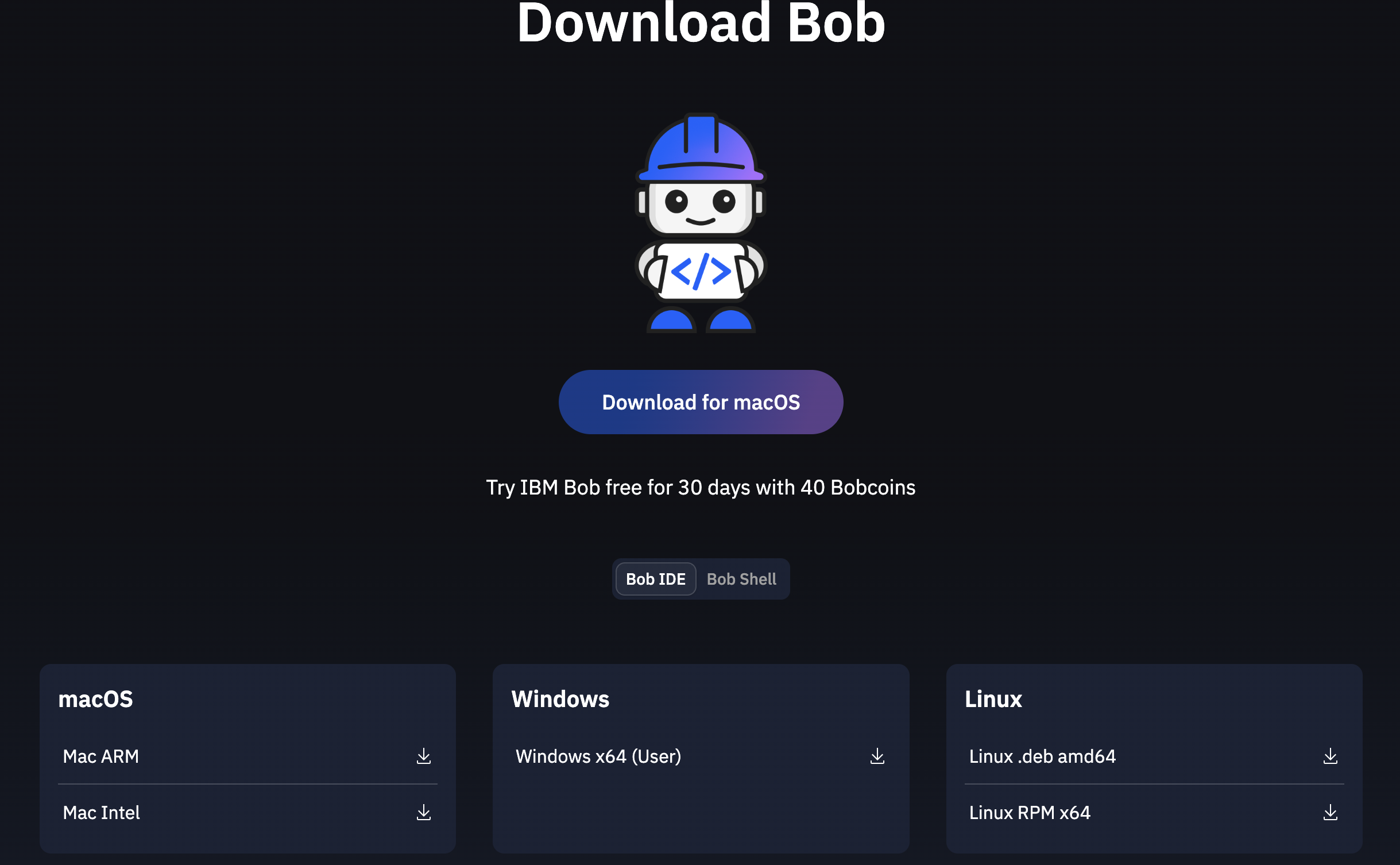
Detailed Installation Instructions: For complete installation guidance, visit bob.ibm.com/docs/ide/getting-started/install
❗️ IMPORTANT ❗️
You must be logged in to use Bob's AI capabilities throughout the workshop. If you encounter any login issues, contact your instructor.
Step 5: Open Folder in IBM Bob IDE
- Once IBM Bob IDE has opened:
-
Click File → Open Folder
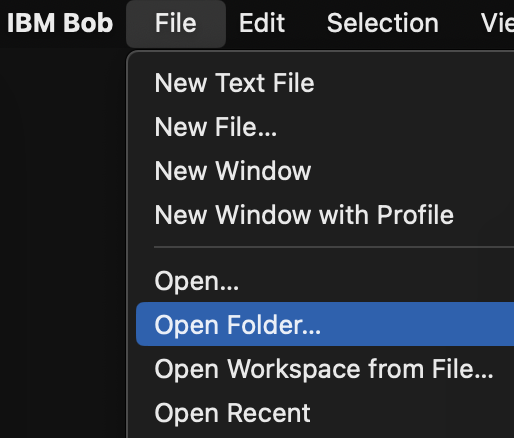
-
Navigate to and select the
bobchestrate-wsfolder - Click Open
-
Click Yes, I trust the author to trust the workspace
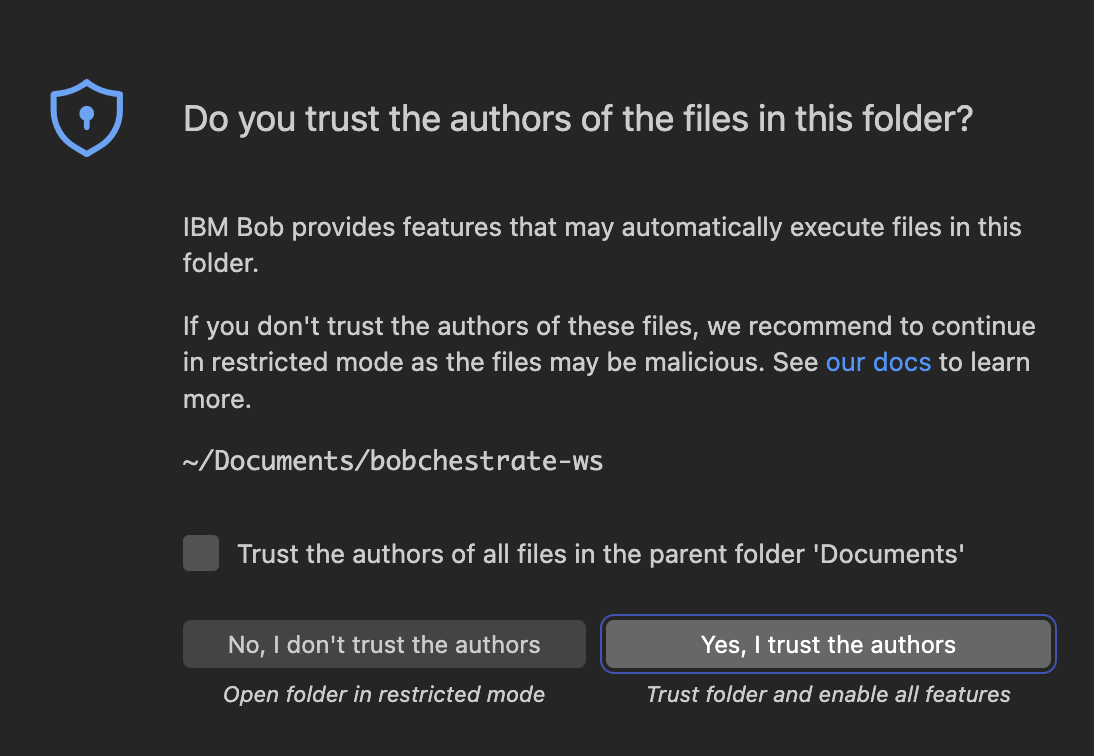
The empty workspace will open.
Step 6: Create Python Virtual Environment
❗️ IMPORTANT ❗️
The Python virtual environment is crucial for the workshop. Please make sure to complete this step before proceeding to install the wxO VS Code extension and the wxO ADK itself.
macOS / Linux
Create a virtual environment using IBM Bob IDE's built-in commands:
- Open the Command Palette in IBM Bob IDE (press
Cmd+Shift+P) - Start typing "Python: Create Environment" and select it
- Choose "Venv" as the environment type
- Select your Python interpreter (Python 3.11-3.13) and wait for the virtual environment to be created
IMPORTANT: Make sure to select the supported Python interpreter version (3.11-3.13). If you do not see the correct version, you may need to install it first. If you have installed the correct version and still don't see it, restart IBM Bob IDE.
You can now see the .venv folder in your workspace explorer view.
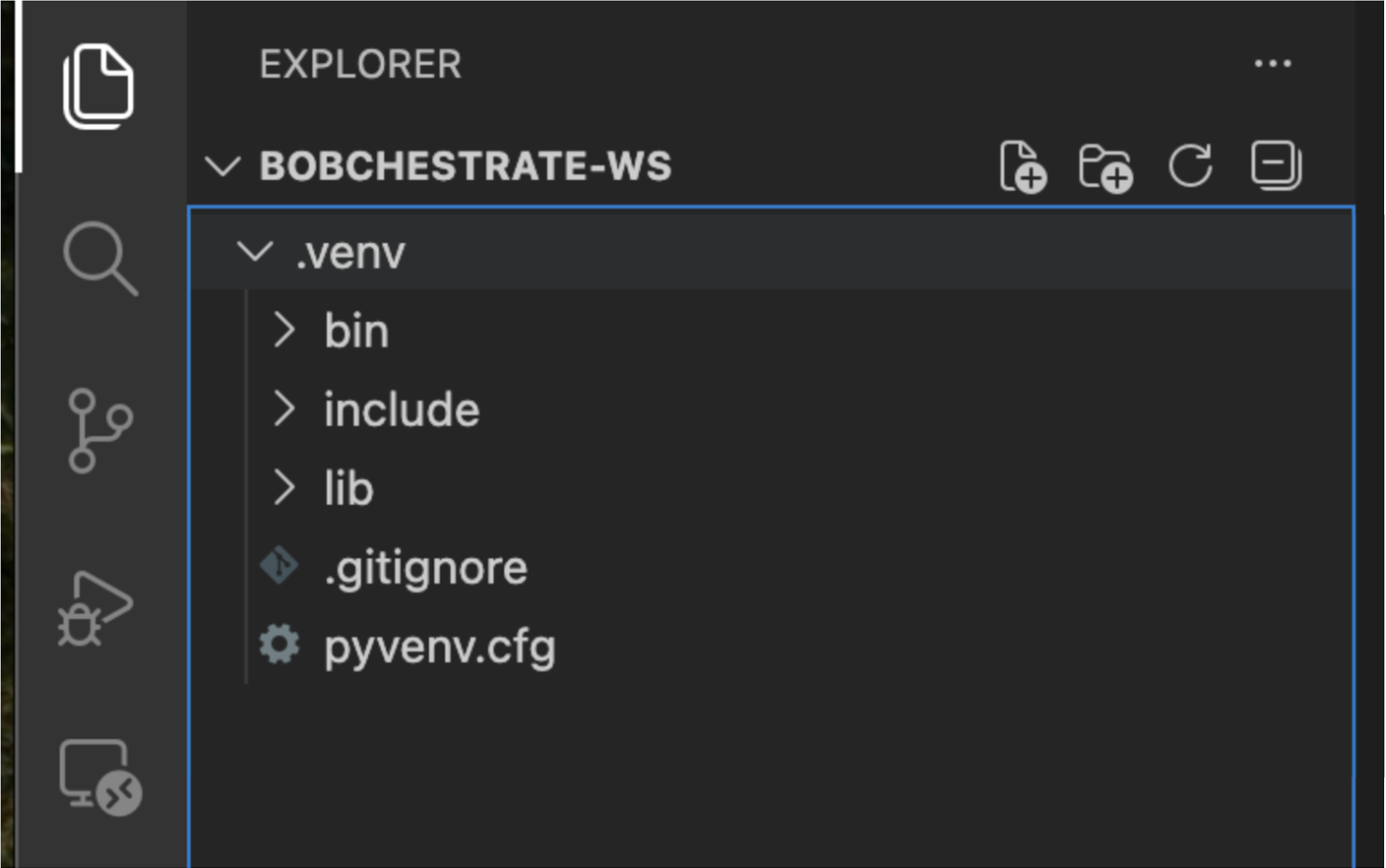
IBM Bob IDE will automatically:
- Create a .venv folder in your workspace
- Activate the virtual environment in new terminals
- Show (.venv) in your terminal prompt
NOTE: The virtual environment will be automatically activated when you open new terminals in IBM Bob IDE.
Windows 11
You can create the virtual environment via IBM Bob IDE (recommended) or manually in PowerShell.
Option A: Using IBM Bob IDE (Recommended)
- Open the Command Palette in IBM Bob IDE (press
Ctrl+Shift+P) - Start typing "Python: Create Environment" and select it
- Choose "Venv" as the environment type
- Select your Python interpreter (Python 3.11-3.13) and wait for the virtual environment to be created
IMPORTANT: Make sure to select the supported Python interpreter version (3.11-3.13). If you do not see the correct version, you may need to install it first. If you have installed the correct version and still don't see it, restart IBM Bob IDE.
IBM Bob IDE will automatically create and activate .venv in new terminals.
Option B: Manual PowerShell Setup
If you prefer the terminal or run into IDE issues:
# Navigate to your project folder
cd C:\Users\YourName\bobchestrate-ws

# Create the virtual environment
python -m venv .venv
Activate it:
⚠️ PowerShell Execution Policy: If you get a script execution error, run this once:
Verify activation — your prompt will show (.venv) and:
where python   # Should point to .venv\Scripts\python.exe
pip --version  # Should show pip inside .venv
NOTE: Add
.venvto your.gitignore— never commit the virtual environment folder.
Alternative Tools Worth Knowing
| Tool | When to Use |
|---|---|
| venv (built-in) | Default choice for most projects |
| conda / miniconda | Data science / scientific computing (manages Python versions too) |
| pyenv-win | Need to manage multiple Python versions on the same machine |
| uv | Fastest modern alternative; drop-in replacement for pip+venv |
| pipenv | Combined dependency management + venv (heavier, less popular now) |
| poetry | Full dependency/packaging management for library authors |
Step 7: Install watsonx Orchestrate ADK VS Code Extension
❗️ IMPORTANT ❗️
If you already have the extension installed, please reload the Bob IDE window! This ensures the extension properly detects your new virtual environment. Open the Command Palette in IBM Bob IDE (press
Cmd+Shift+Pon Mac /Ctrl+Shift+Pon Windows/Linux), start typing "Developer: Reload Window" and select it. The Bob IDE window reloads and the extension will restart. You can then proceed directly with the Step 8. Do NOT use the extension to initialise the workspace!
Install the watsonx Orchestrate extension for IBM Bob IDE:
-
Open the Extensions view in IBM Bob IDE (Click the Extensions icon in the Activity Bar or press
Cmd+Shift+Xon Mac /Ctrl+Shift+Xon Windows/Linux)
-
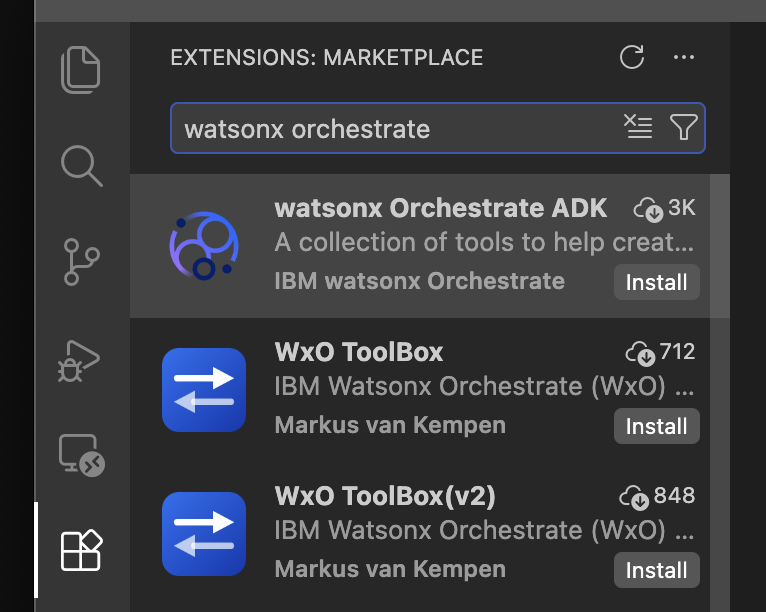
Search for "watsonx Orchestrate"
-
Click Install on the "watsonx Orchestrate ADK" extension
- Wait for the installation to complete
- Reload VS Code if prompted
-
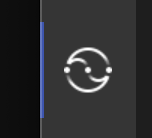
You should now see the extension icon appear in the Activity Bar - You do NOT need to open it. If you do, do NOT initialize the workspace using it. This might cause some issues with the setup procedure we're using right now:
The IBM watsonx Orchestrate ADK VS Code extension provides:
- Workspace Management: Automatically creates and initializes folder structures for agent development
- ADK Version Management: Install and update the watsonx Orchestrate ADK directly from VS Code
- Agent & Tool File Creation: Assists with creating agent and tool files
- Developer Edition Server Control: Start/stop the watsonx Orchestrate Developer Edition server directly from the UI
- Orchestrate AI Builder Assistant: Interactive AI assistant that guides you through building and refining agents using prompts
❗️ IMPORTANT ❗️
Do NOT open the extension itself, you just need it installed. Using the extension to initialise the workspace can cause issues!
Step 8: Install watsonx Orchestrate ADK
macOS / Linux
Since you now have the watsonx Orchestrate ADK extension installed, you will see the ADK information in the bottom Status Bar. Since we just created a fresh Python virtual environment to our workspace, you should see just a red cross ❌ stating that you need to install the ADK.
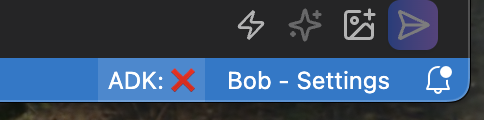
Click on the red cross to install the ADK. This will open a couple of commands to the search/command bar. Select the one to install the ADK.
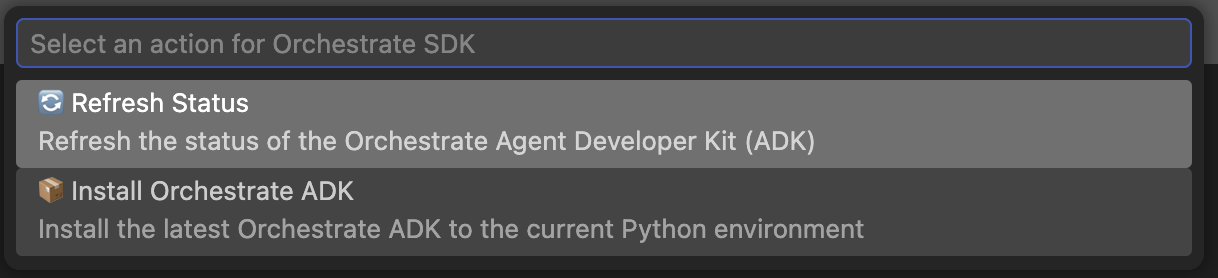
Wait for the installation to complete. After a while, you should see a notification and a green checkmark in the Status Bar with the latest version number of the ADK.
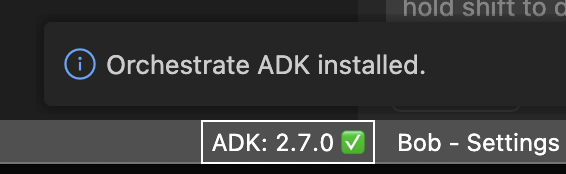
NOTE: The version number you are seeing in the Status Bar is the version of the ADK that is installed. It might be different from the version shown in the picture above. New ADK versions are released regularly, so the version number will change over time.
Windows 11
You can install the ADK via IBM Bob IDE (same as macOS above) or manually via PowerShell.
Option A: Using IBM Bob IDE (Recommended)
Follow the same steps as macOS above — click the red cross ❌ in the Status Bar and select the install option.
Option B: Manual Installation via PowerShell
With your virtual environment activated, run:
Validate the installation:
You should see the ADK version number printed in the terminal.
Step 9: Install watsonx Orchestrate MCP Servers
Install the watsonx Orchestrate MCP servers through the ADK extension:
- Open the Command Palette in IBM Bob IDE (press
Cmd+Shift+Pon Mac /Ctrl+Shift+Pon Windows/Linux) - Start typing "watsonx Orchestrate: Install WXO MCP Servers" and select it
- Wait for the installation to complete
- You should see a confirmation message that the MCP servers have been installed successfully
Verify the installation:
To confirm the MCP servers are installed and working:
- Open Bob's chat panel in IBM Bob IDE
- Ask Bob: "What MCP servers are available?"
- You should see the following watsonx Orchestrate MCP servers listed:
watsonx-orchestrate-adk- Provides tools for interacting with watsonx Orchestrate (list agents, tools, etc.)watsonx-orchestrate-adk-docs- Provides access to watsonx Orchestrate documentation
Alternatively, you can check the MCP servers configuration:
1. Open the Command Palette (Cmd+Shift+P / Ctrl+Shift+P)
2. Type "MCP Servers" and select it
3. Verify that the watsonx Orchestrate MCP servers are listed in the configuration and both of them marked with a green bullet point
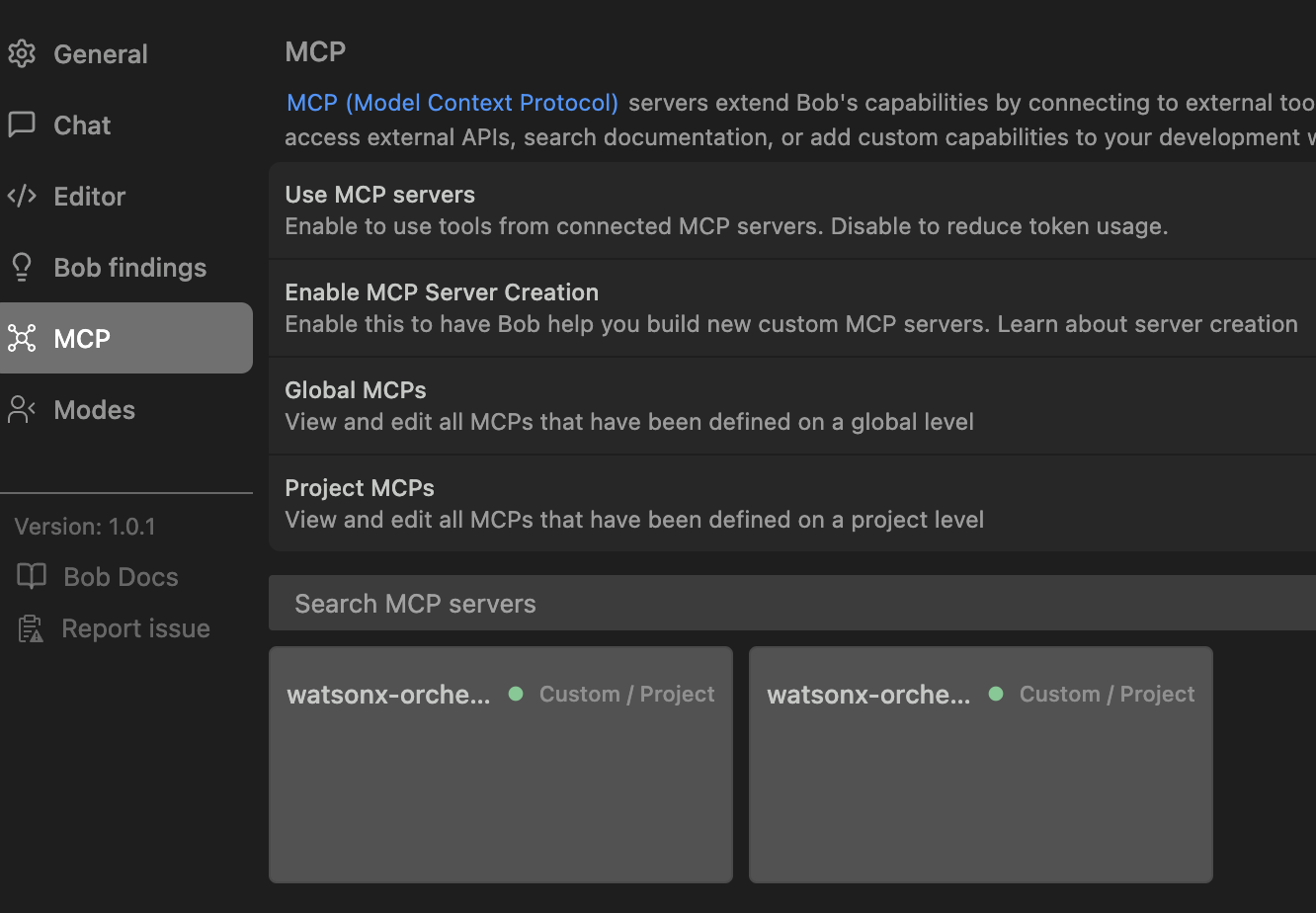
NOTE: It might take a couple of seconds after the installation is run for both of the MCP servers to appear in the list.
The MCP servers provide:
- Access to watsonx Orchestrate documentation
- Integration with the watsonx Orchestrate ADK
- Tools for listing agents, tools, and other resources
- Enhanced Bob capabilities for watsonx Orchestrate development
Step 10: Import WXO Agent Architect Mode
Import a pre-configured custom mode specialized for building watsonx Orchestrate agents.
NOTE: IBM Bob Marketplace has a lot of pre-configured modes for IBM Bob IDE, including a mode for building watsonx Orchestrate agents. Unfortunately, the marketplace is currently not available for non-IBMers but will be in the near future. This step will guide you on how to import a custom mode manually.
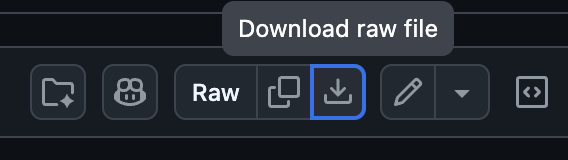
Download the mode configuration file:
- The file is located at: wxo-agent-architect-export.yaml
-
Click the Download raw file button
-
Save the file to your Downloads folder or a location you can easily access
- Open the Command Palette in IBM Bob IDE (press
Cmd+Shift+Pon Mac /Ctrl+Shift+Pon Windows/Linux) - Type "Modes" and select it
-
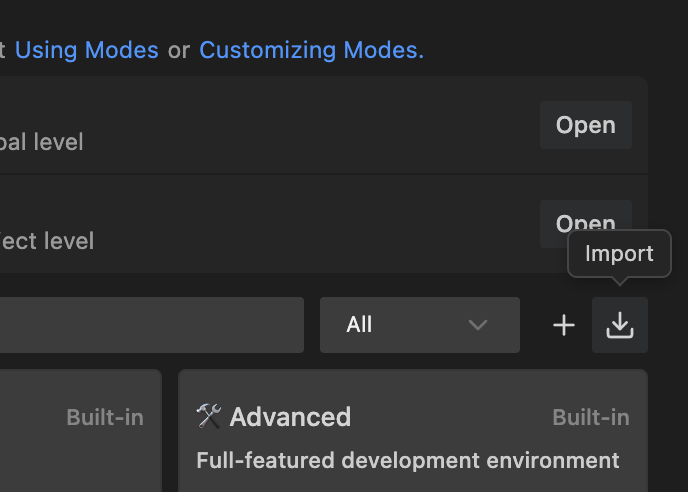
Click on Import icon in the modes panel
-
Select the
wxo-agent-architect-export.yamlfile you downloaded and click Open - You should see a confirmation message that the mode was imported successfully and see the mode appear in the modes panel
The imported "WXO Agent Architect" mode includes:
- Role Definition: Specialized for building watsonx Orchestrate agents
- Custom Instructions: Guidance on using MCP servers for agent development
- MCP Server Integration: Automatically uses both
watsonx-orchestrate-adkandwatsonx-orchestrate-adk-docsservers - Tool Groups: Access to read, edit, browser, command, and MCP tools
Verify the mode:
- Open Bob's chat panel if not already open
- Click on the mode selector (usually shows the current mode like "Code" or "Ask")
- You should see "WXO Agent Architect" in the list of available modes
- Select "WXO Agent Architect" mode
- Ask Bob: "What can you help me with in this mode?"
- Bob should respond with information about building watsonx Orchestrate agents and mention the available MCP servers
Step 11: Get Your watsonx Orchestrate API key and API URL
For the workshop, we will use the watsonx Orchestrate ADK to interact with a watsonx Orchestrate SaaS instance. The ADK requires your API key and API URL to authenticate and connect to your watsonx Orchestrate instance.
Note:
Your instructor will provide you with the API key and API URL for your watsonx Orchestrate instance.If you are using your own instance, you can follow the instructions below to get the needed API key and the API URL.
OPTIONAL: Using your own watsonx Orchestrate SaaS instance
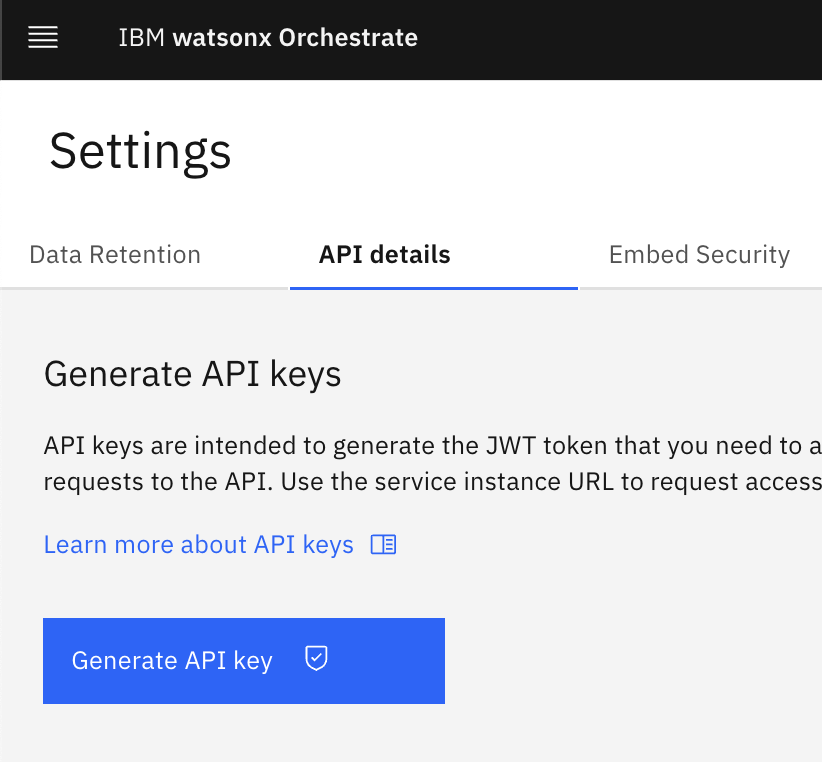
To generate an API key for the ADK:
- In your watsonx Orchestrate console, click on your profile icon in the top-right corner
- Select Settings from the dropdown menu
- Navigate to the API details tab
-
Click Generate API key button
-
When the key is generated, click Copy to save it to your clipboard
- Important: Copy the API key immediately and store it securely
- The key will only be shown once
- If you lose it, you'll need to create a new one
Security Best Practice: Treat your API key like a password. Never commit it to version control or share it publicly.
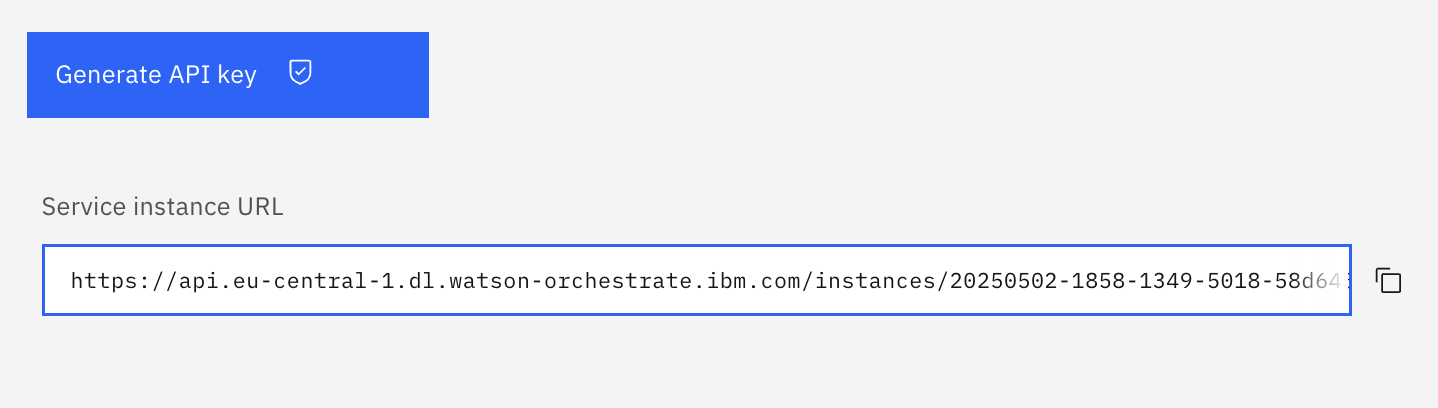
To get the API URL:
Copy the Service instance URL from the API details information. This is the base URL for your watsonx Orchestrate instance.
Step 12: Configure the ADK Environment
Option A: Using the ADK CLI - check out the Option B before deciding which option to use 😉
-
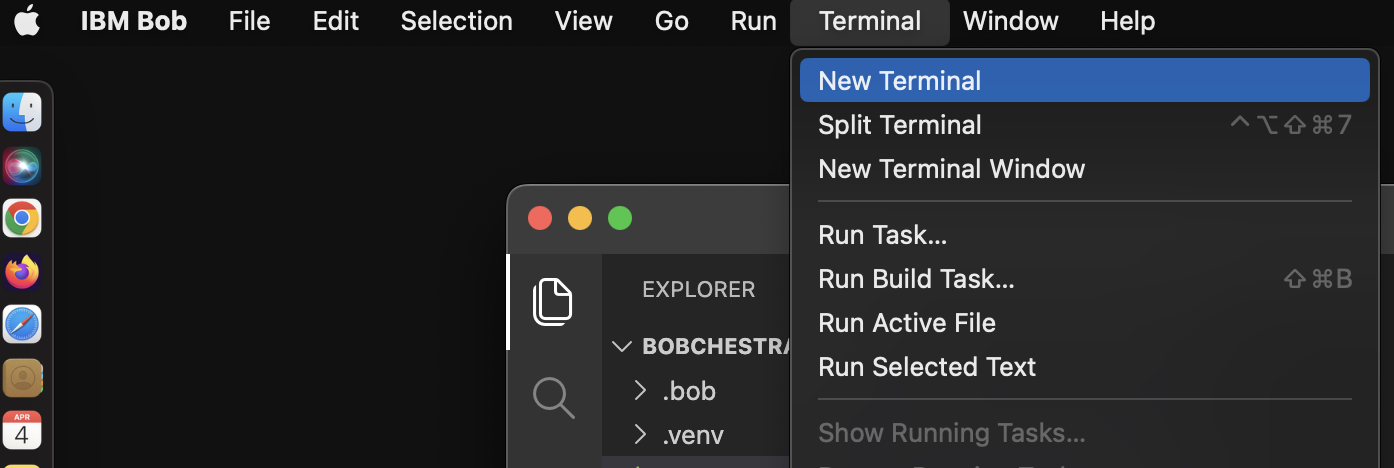
Open a terminal window within Bob IDE:
-
From the Bob main menu bar, select Terminal > New Terminal
-
This will open a terminal window in the Bob IDE - notice that your Python virtual environment is automatically activated

-
Run the following command in your terminal to add your environment:
<your-env-name> is a name you choose for your environment (e.g., "my-wxo-cloud") and <your-api-url> is the URL you got in Step 11.
After running the command, you should see a message: [INFO] Environment '<your-env-name>' has been created
- Run the following command to activate the environment:
<your-env-name> is a name you choose for your environment (e.g., "my-wxo-cloud") and <your-api-key> is the API key you got in Step 11.
After running the command, you should see a message: [INFO] Environment '<your-env-name>' is now active. This means your environment is now active and ready to use with the ADK. You can ignore the warning regarding the Auth Type.
❗️ IMPORTANT ❗️
Authentication against a remote environment expires every two hours. After expiration, you need to run orchestrate env activate again. So, keep your API key available and ready to use.
Option B: Using Bob to help you 😃
Now that you have watsonx Orchestrate MCP servers and the WXO Agent Architect mode enabled, you can use Bob to help you with the setup.
-
Make sure that you have the WXO Agent Architect mode selected for your Bob chat. Then ask Bob to create a script to add and activate a new watsonx Orchestrate environment for the ADK:
Create a simple shell script to add and activate new watsonx Orchestrate SaaS environment for the ADK. I have the environment URL and API key ready.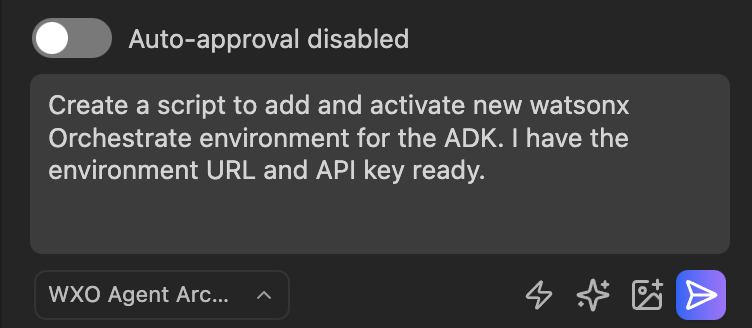
-
When Bob starts working, it will be asking for permission to access the watsonx-orchestrate-adk-docs MCP server. Click on the Approve button to allow Bob to access the documentation.
NOTE: You can also check the Always allow checkbox to always allow Bob to access the MCP server. One option is to enable Auto-approval. If you do this, you can specify the different options that you want to allow.
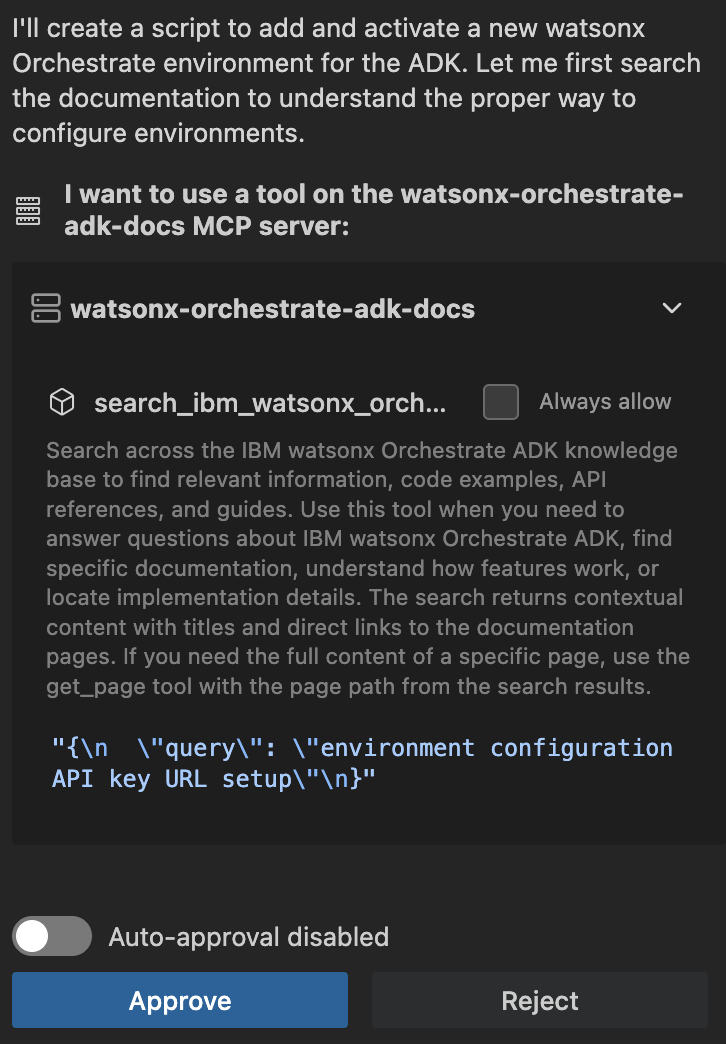
NOTE: Bob might ask you to approve the MCP server access multiple times. This is because Bob is trying to access the MCP server to get the more detailed information after first learning about the environment setup. Recommendation is to enable Auto-approval for the MCP servers to avoid granting the permission manually each time.
-
After Bob has created the script (e.g. add_wxo_env.sh, the name could be something else for you), it will ask for permission to save the script. Click on the Save button to save the script.
-
Next, Bob will (or not, depends on the day 😅) create a documentation - an MD-file - for the script. Click on the Save button to save the documentation.
-
After Bob has saved the documentation, it will ask you to permission to make the script executable. Click on the Run to execute the command.
-
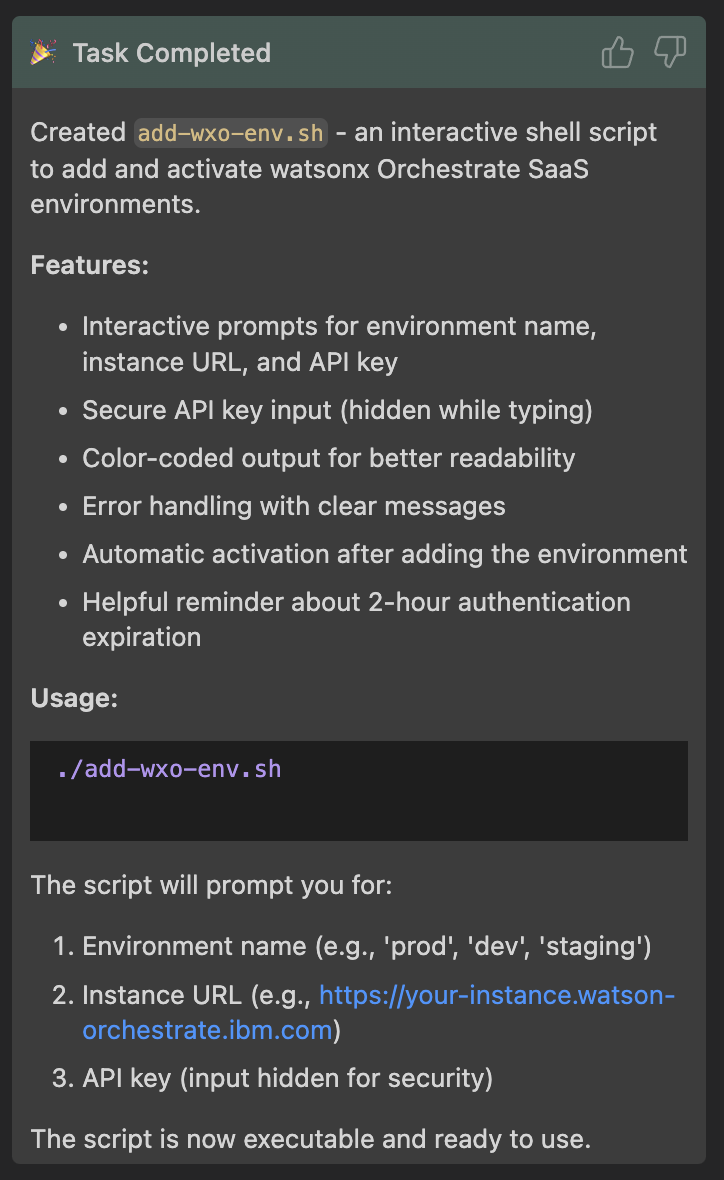
Finally Bob will summarize the task for you
-
Open a terminal window within Bob IDE
-
From the Bob main menu bar, select Terminal > New Terminal
-
This will open a terminal window in the Bob IDE - notice that your Python environment is automatically activated
-
Run the created script in your terminal to add your environment
./<name_of_your_created_script>, e.g. ./add_wxo_env.sh -
When asked, provide a name for your environment, e.g.
my-wxo-cloud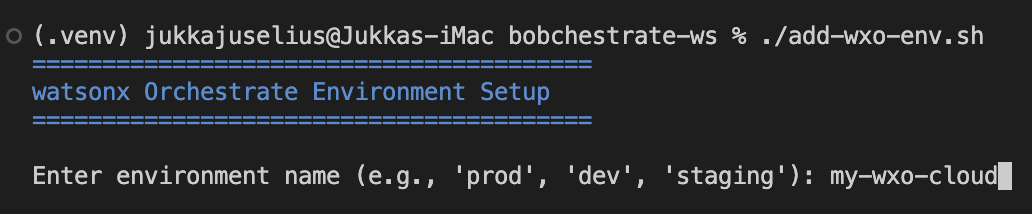
-
When asked, provide the URL of your Orchestrate instance that you got earlier

-
When asked, provide the API key of your Orchestrate instance that you got earlier. The script will then create a new environment and activate it.
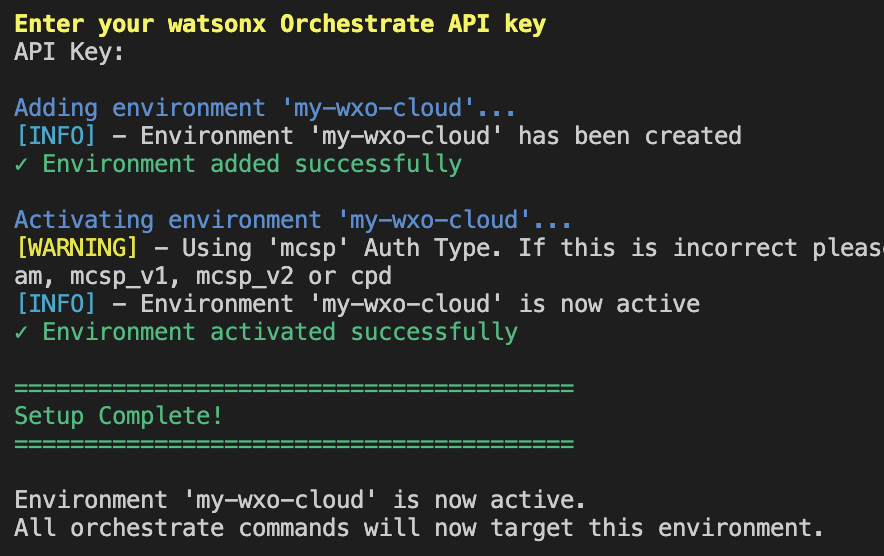
-
Verify your connection is working. Run the following command in your Bob IDE terminal
If configured correctly, this command will list any agents in your environment (or show an empty list if you haven't created any agents yet).
❗️ IMPORTANT ❗️
Authentication against a remote environment expires every two hours. After expiration, you need to run orchestrate env activate again. So, keep your API key available and ready to use.
Using Bob Throughout the Workshop
Bob is your AI pair programmer for this workshop. Here's how to use Bob effectively:
Good Bob Prompts:
✅ "Bob, create a Python tool that checks order status given an order ID"
✅ "Bob, why is my agent not responding to user messages?"
✅ "Bob, explain what agent instructions do in watsonx Orchestrate"
✅ "Bob, refactor this tool to handle errors better"
Less Effective Prompts:
❌ "Bob, fix this" (too vague)
❌ "Bob, make it work" (no context)
❌ "Bob, do everything for me" (you won't learn!)
Bob's Special Powers:
- 🔍 Search docs: Bob can search watsonx Orchestrate documentation
- 💻 Write code: Bob can create Python tools and agent specs
- 🐛 Debug: Bob can analyze errors and suggest fixes
- 📚 Explain: Bob can explain concepts and best practices
- 🔧 Refactor: Bob can improve your code
Managing Bob Chat Sessions:
- ✅ Continue in same session: When working on related tasks or the same topic/artifacts, continue in the same Bob chat session to maintain context
- 🆕 Start new task: When switching to a completely different topic or unrelated work, start a new task with Bob for a clean context
- Click the "Start New Task" button in Bob's chat panel to start a new task
- This helps Bob focus on the new topic without confusion from previous context
- 💡 Best practice: Think of each Bob session as a focused work session - keep related work together, separate unrelated work
Troubleshooting
Issue: "orchestrate: command not found"
macOS / Linux
Make sure your virtual environment is activated — (.venv) should appear in your prompt. Then reinstall:
orchestrate command is still not found after reinstalling, your venv may not be activated. Open a new terminal in IBM Bob IDE (which auto-activates .venv) and try again.
Windows 11
Make sure your virtual environment is activated — (.venv) should appear in your prompt. Then reinstall:
orchestrate command is still not found, add the Scripts folder to your PATH:
# Find the Scripts path
where.exe orchestrate

# If not found, manually add the venv Scripts folder to PATH
$env:PATH += ";C:\Users\YourName\bobchestrate-ws\.venv\Scripts"
Issue: "Authentication failed"
Solution: Check your environment configuration:
# List environments
orchestrate env list

# Add/update environment
orchestrate env add

# Activate environment
orchestrate env activate <name>
Issue: Bob isn't responding
Solution:
- Restart Bob IDE
- Check the Bob output panel for errors
Quick Reference
Useful Commands
# Add environment
orchestrate env add

# List environments
orchestrate env list

# Activate environment
orchestrate env activate <name>

# List agents
orchestrate agents list

# List tools
orchestrate tools list

# Get help
orchestrate --help

# Check version
orchestrate --version
Next Steps
Once your setup is verified:
- ✅ You can connect to watsonx Orchestrate
- ✅ Bob is responding to your questions
- ✅ Your workspace is ready for development
You're ready to build your first agent!
Continue to Part 2: Building Your First Agent →
Additional Resources
💡 Pro Tip: Keep Bob's chat panel open throughout the workshop. Whenever you're stuck, just ask Bob for help!
🧠 Knowledge Check
Now that you've completed the setup, test what you've learned!
Part 1 Quiz
Take the short 5-question quiz to check your understanding of the setup steps. Your score is saved automatically and shown on the home page dashboard.
🙏 Acknowledgements
Special thanks to Ryan Sparks and Mike McMahon for providing the Windows-specific additions to this setup guide.