Part 4: Knowledge Bases & Collaborators

Duration: 25 minutes
Objective: Add knowledge bases for FAQ handling and create specialized collaborator agents
Note: This part builds on the agents you created in Part 3: Custom Tools.
What You'll Learn
- How to create and configure knowledge bases
- Connecting knowledge bases to agents
- Creating specialized collaborator agents
- Building agent hierarchies for complex workflows
Knowledge Bases Overview
Knowledge bases allow agents to:
- 📚 Access large amounts of information without including it in instructions
- 🔍 Retrieve relevant information based on user queries
- 📝 Answer questions from documents, FAQs, and knowledge articles
- 🎯 Provide accurate, sourced responses
In this part we will create a simple FAQ knowledge base for our customer support agent, but first, let's have a look at the information that is required to create a knowledge base.
To define your knowledge base you need to create a configuration file that references document files you want to use as the knowledge. Here's a complete example:
# customer-support-faq.yaml
spec_version: v1
kind: knowledge_base
name: customer-support-faq
description: Frequently asked questions for customer support including shipping, returns, payments, account management, and order management

# List of document files to ingest (relative to this YAML file)
documents:
  - FAQ.pdf

# Vector index configuration for built-in Milvus
vector_index:
  embeddings_model_name: ibm/slate-125m-english-rtrvr-v2
  chunk_size: 500
  chunk_overlap: 50
  limit: 10
  extraction_strategy: standard
📋 Knowledge Base YAML Field Reference
Required Fields
| Field | Description | Example |
|---|---|---|
spec_version |
API version (always use v1) |
v1 |
kind |
Resource type (must be knowledge_base) |
knowledge_base |
name |
Unique identifier (lowercase, hyphens only) | customer-support-faq |
description |
Clear description of knowledge base content | Frequently asked questions... |
documents |
List of document file paths (relative to YAML) | - FAQ.pdf |
Optional Fields (vector_index section)
| Field | Description | Default | Options/Range |
|---|---|---|---|
embeddings_model_name |
Embedding model for vector search | ibm/slate-125m-english-rtrvr-v2 |
See embedding models below |
chunk_size |
Characters per text chunk | 400 |
100-1000 |
chunk_overlap |
Overlap between chunks (for context) | 50 |
0-200 |
limit |
Max documents to retrieve per query | 10 |
1-100 |
extraction_strategy |
Document processing quality | standard |
express, standard, high_quality |
Extraction Strategy Options
express- Fastest processing, basic text extraction (good for simple documents)standard- Balanced speed and quality (recommended for most use cases)high_quality- Slowest but most accurate (best for complex documents with tables, images)
🤖 Available Embedding Models
IBM watsonx.ai Models (Recommended)
| Model | Description | Best For |
|---|---|---|
ibm/slate-125m-english-rtrvr-v2 |
Default - Optimized for English retrieval | General FAQ, documentation |
ibm/slate-125m-english-rtrvr |
Previous version | Legacy compatibility |
ibm/slate-30m-english-rtrvr |
Smaller, faster model | Simple queries, faster retrieval |
OpenAI Models (via Virtual Models)
| Model | Description | Best For |
|---|---|---|
openai/text-embedding-3-small |
Cost-effective, good performance | General purpose |
openai/text-embedding-3-large |
Higher accuracy, larger dimensions | Complex semantic search |
openai/text-embedding-ada-002 |
Previous generation | Legacy compatibility |
Note: OpenAI models require setting up a virtual model connection first.
Custom Models
You can also register custom embedding models from other providers using the AI Gateway as virtual models.
To see all available models in your environment:
Note: The default embedding model ibm/slate-125m-english-rtrvr-v2 is available in all watsonx Orchestrate environments. For custom embedding models, consult your platform administrator or refer to the Model Management documentation.
📄 Supported Document Formats
| Format | Max File Size | Notes |
|---|---|---|
| 25 MB | Most common format | |
| DOCX | 25 MB | Microsoft Word documents |
| PPTX | 25 MB | PowerPoint presentations |
| XLSX | 1 MB | Excel spreadsheets |
| TXT | 5 MB | Plain text files |
| CSV | 5 MB | Comma-separated values |
| HTML | 5 MB | Web pages |
Limits:
- Maximum 100 files per knowledge base
- Each file must have a unique name
💡 Example Configurations
Minimal Configuration (uses all defaults):
spec_version: v1
kind: knowledge_base
name: simple-faq
description: Simple FAQ knowledge base
documents:
  - faq.pdf
Optimized for Large Documents:
spec_version: v1
kind: knowledge_base
name: technical-docs
description: Technical documentation
documents:
  - manual.pdf
  - guide.pdf
vector_index:
  embeddings_model_name: ibm/slate-125m-english-rtrvr-v2
  chunk_size: 800           # Larger chunks for technical content
  chunk_overlap: 100        # More overlap for context
  limit: 15                 # Retrieve more documents
  extraction_strategy: high_quality  # Better for complex layouts
Fast Retrieval Configuration:
spec_version: v1
kind: knowledge_base
name: quick-faq
description: Quick FAQ responses
documents:
  - faq.txt
vector_index:
  embeddings_model_name: ibm/slate-30m-english-rtrvr  # Faster model
  chunk_size: 300           # Smaller chunks
  chunk_overlap: 30         # Less overlap
  limit: 5                  # Fewer results
  extraction_strategy: express  # Fastest processing
Step 1: Create a Knowledge Base
Now, let's create a simple FAQ knowledge base for our customer support agent. Bob can help you with this.
Create PDF-based knowledge base configuration with Bob's Help
Use Bob to create a knowledge base YAML file to import the FAQ PDF.
- Download the FAQ PDF:
- Direct download: FAQ.pdf
The FAQ.pdf contains comprehensive FAQs about:
- Shipping Information
- Returns and Refunds
- Payment Methods and Billing
- Account Management
- Order Management
-
Customer Support
-
Place the PDF in the
knowledge_basesdirectory in your workspace. -
Ask Bob to create the knowledge base:
-
What Bob will do:
- Verify that the FAQ.pdf file exists in the knowledge_bases directory
- Create a properly formatted knowledge base YAML file to import the PDF as a knowledge base
-
Structure it for optimal retrieval in watsonx Orchestrate
-
Expected output: Bob will create a
customer-support-faq.yamlfile with the PDF content ready for import into watsonx Orchestrate.
Knowledge Base Naming Guidelines
When naming your knowledge base, follow these best practices:
- Use lowercase letters, numbers, and hyphens (e.g.,
customer-support-faq) - Keep names descriptive and meaningful
- Avoid spaces (use hyphens instead)
- Use consistent naming conventions across your project
- Example good names:
product-catalog,technical-docs,company-policies
Step 2: Import the Knowledge Base
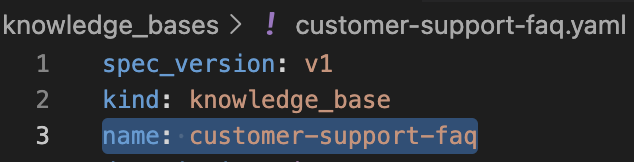
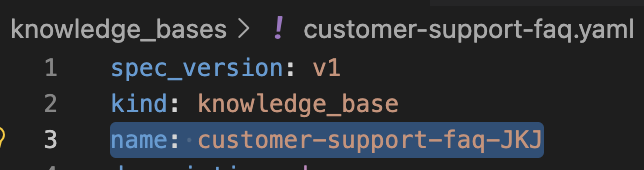
IMPORTANT: Since the workshop participants will be using the same watsonx Orchestrate environment, RENAME your knowledge-base in the yaml-file by adding your initials as a postfix.
For example, name: customer-support-faq becomes name: customer-support-faq-JKJ.
⬇︎
Import your knowledge base:
Check the status:
orchestrate knowledge-bases list
orchestrate knowledge-bases status -n customer-support-faq-<your_initials_here>
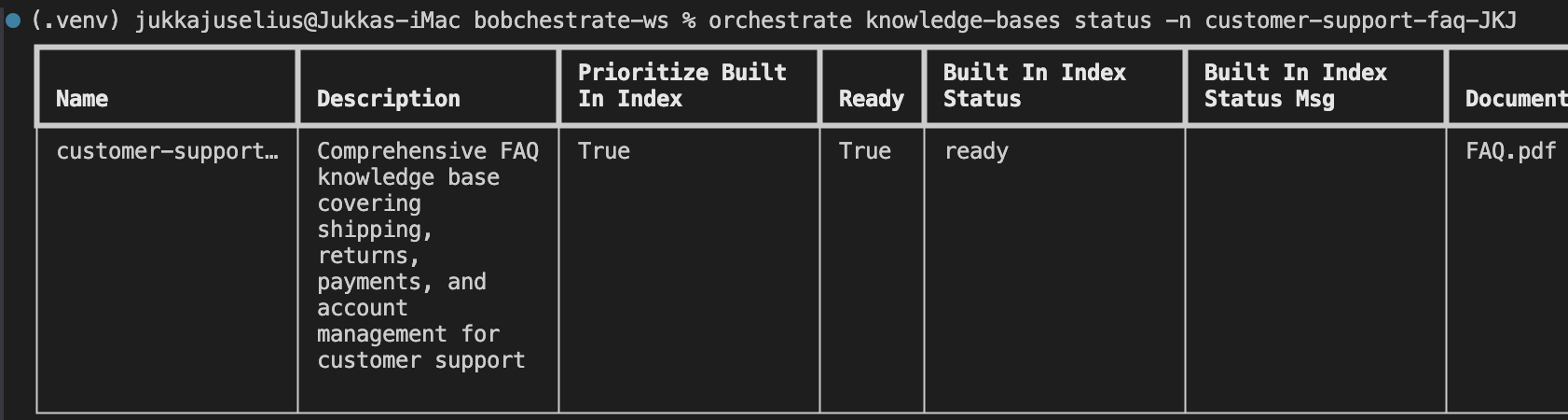
Wait for the knowledge base to be indexed (status: "ready").
Step 3: Connect Knowledge Base to Agent
Update your customer support agent to use the knowledge base. Add the "knowledge_base" field to your agent configuration.
NOTE: The example below might be a bit different what you have as your customer support agent, but the main things is to add the "knowledge_base" field to your agent configuration.
# customer-support-agent.yaml
spec_version: v1
kind: native
name: customer_support_agent_<your_initials_here>
style: default
hide_reasoning: true
description: A customer support agent that can check orders, process refunds, and answer FAQs

instructions: |
  You are a helpful customer support agent for an e-commerce company.

  Your capabilities:
  - Check order status using the check_order_status tool
  - Process refund requests using the process_refund tool
  - Answer questions using the customer-support-faq knowledge base

  When answering questions:
  1. First check if the information is in your knowledge base
  2. Provide accurate, helpful answers based on the knowledge base
  3. If the information isn't available, politely say so and offer to escalate

  When handling orders and refunds:
  1. Use the appropriate tools
  2. Present information clearly
  3. Be empathetic and professional

  Always prioritize customer satisfaction while following company policies.

llm: groq/openai/gpt-oss-120b

# Tools this agent can use
tools:
  - check_order_status_<your_initials_here>
  - process_refund_<your_initials_here>

# Knowledge bases this agent can access
knowledge_base:
  - customer-support-faq-<your_initials_here>
Re-import the agent:

Step 4: Test Knowledge Base Integration
Test the agent with FAQ questions:
Try these questions:
- "What's your shipping policy?"
- "What payment methods do you accept?"
- "How long does standard shipping take?"
- "Do you accept returns?"
The agent should retrieve and present information from the knowledge base!
Step 5: Create a Specialized Escalation Agent
Now let's create a specialized agent for handling complex issues. Use the example below as a template and store it in agents/escalation-agent.yaml.
AGAIN, remember to replace <your_initials_here> with your actual initials in all file names and references!
# escalation-agent.yaml
spec_version: v1
kind: native
name: escalation_agent_<your_initials_here>
style: default
hide_reasoning: true
description: Handles complex customer issues that require manager approval or special handling

instructions: |
  You are a senior customer support specialist who handles escalated issues.

  Your role:
  - Handle complex refund requests over $10,000
  - Resolve customer complaints
  - Make exceptions to standard policies when appropriate
  - Provide detailed investigation of issues

  When handling escalations:
  1. Acknowledge the customer's frustration
  2. Gather all relevant details
  3. Explain what you can do to help
  4. Provide clear next steps and timelines
  5. Follow up to ensure resolution

  You have authority to:
  - Approve refunds up to $25,000
  - Offer compensation (discounts, credits)
  - Override standard policies in exceptional cases
  - Expedite shipping at no charge

  Always document your decisions and reasoning. Be empathetic but maintain
  professional boundaries.

llm: groq/openai/gpt-oss-120b

# This agent can use the same tools
tools:
  - check_order_status_<your_initials_here>
  - process_refund_<your_initials_here>

# And access the same knowledge base
knowledge_base:
  - customer-support-faq-<your_initials_here>
Import the escalation agent:
Step 6: Create Agent Collaboration
Update the main customer support agent to collaborate with the escalation agent:
# customer-support-agent.yaml (updated)
spec_version: v1
kind: native
name: customer_support_agent_<your_initials_here>
style: default
hide_reasoning: true
description: A customer support agent that can check orders, process refunds, and answer FAQs

instructions: |
  You are a helpful customer support agent for an e-commerce company.

  Your capabilities:
  - Check order status using the check_order_status tool
  - Process refund requests using the process_refund tool (up to $10,000)
  - Answer questions using the customer-support-faq knowledge base
  - Escalate complex issues to the escalation-agent

  When to escalate to escalation-agent:
  - Refund requests over $10,000
  - Customer is very upset or threatening legal action
  - Request requires policy exception
  - Issue is beyond your authority
  - Customer specifically requests a manager

  When escalating:
  1. Explain to the customer that you're connecting them with a specialist
  2. Summarize the issue for the escalation agent
  3. Let the escalation agent take over

  For routine matters, handle them yourself efficiently and professionally.

llm: groq/openai/gpt-oss-120b

tools:
  - check_order_status_<your_initials_here>
  - process_refund_<your_initials_here>

knowledge_base:
  - customer-support-faq-<your_initials_here>

# Add the escalation agent as a collaborator
collaborators:
  - escalation_agent_<your_initials_here>
The important parts:
- Add escalation_agent_
to collaborators - Add instructions about when to escalate under your customer support agent's instructions
When to escalate to escalation_agent_<your_initials_here>:
  - Refund requests over $10,000
  - Customer is very upset or threatening legal action
  - Request requires policy exception
  - Issue is beyond your authority
  - Customer specifically requests a manager

  When escalating:
  1. Explain to the customer that you're connecting them with a specialist
  2. Summarize the issue for the escalation agent
  3. Let the escalation agent take over

  For routine matters, handle them yourself efficiently and professionally.
Re-import:
Step 7: Test Agent Collaboration
Test the collaboration:
Try these scenarios:
Scenario 1: Routine Question (handled by main agent)
Scenario 2: Standard Refund (handled by main agent)
Scenario 3: Large Refund (escalated)
The agent should recognize this needs escalation and delegate to the escalation-agent!
Step 8: Advanced Knowledge Base Features
Multiple Knowledge Bases
You can create specialized knowledge bases for different domains. Each knowledge base requires actual document files.
Example: Technical Support Knowledge Base (just an exammple, you do not need to follow and execure these steps)
-
Obtain / create document files:
device-setup-guide.pdf- Device setup instructionstroubleshooting-guide.pdf- Common troubleshooting steps
-
Create the knowledge base YAML:
# technical-support-kb.yaml spec_version: v1 kind: knowledge_base name: technical-support-kb description: Technical troubleshooting guides and device setup instructions documents: - device-setup-guide.pdf - troubleshooting-guide.pdf vector_index: embeddings_model_name: ibm/slate-125m-english-rtrvr-v2 chunk_size: 600 # Larger chunks for technical content chunk_overlap: 75 limit: 10 extraction_strategy: standard -
Import the knowledge base:
Assigning Multiple Knowledge Bases to Agents
Agents can access multiple knowledge bases. This is useful when an agent needs information from different domains.
# technical-support-agent.yaml
spec_version: v1
kind: native
name: technical_support_agent
description: Technical support agent with access to multiple knowledge bases

llm: groq/openai/gpt-oss-120b

tools:
  - diagnostic_tool
  - reset_device_tool

# Agent can access multiple knowledge bases
knowledge_base:
  - technical-support-kb        # Technical documentation
  - customer-support-faq        # General FAQs
Benefits of Multiple Knowledge Bases:
- ✅ Organize information by domain or topic
- ✅ Share common knowledge bases across multiple agents
- ✅ Update specific knowledge bases independently
- ✅ Optimize retrieval settings per knowledge base type
Best Practices
Knowledge Base Best Practices
✅ DO:
- Organize content into clear, focused documents
- Use descriptive titles
- Include relevant keywords
- Keep documents updated
- Test retrieval with common queries
❌ DON'T:
- Create overly large documents
- Mix unrelated topics in one document
- Use vague titles
- Include outdated information
- Forget to re-index after updates
Collaboration Best Practices
✅ DO:
- Define clear escalation criteria
- Provide context when delegating
- Create specialized agents for specific domains
- Test collaboration flows thoroughly
- Document agent responsibilities
❌ DON'T:
- Create circular delegation loops
- Make escalation criteria too vague
- Give all agents the same capabilities
- Forget to handle delegation failures
- Create too many layers of agents
Common Issues
Issue: Knowledge base not returning relevant results
Solution:
- Check document titles and content
- Verify knowledge base is indexed (status: "ready")
- Try rephrasing the query
- Adjust chunk_size and chunk_overlap
Issue: Agent not delegating to collaborator
Solution:
- Check collaborator is listed in agent YAML
- Review escalation criteria in instructions
- Verify collaborator agent exists
- Test with clear escalation scenarios
Issue: Collaborator agent not accessible
Solution:
Optional exercises
Exercise 1: Product Catalog Knowledge Base
Create a knowledge base with product information and connect it to a sales agent.
Ask Bob:
Bob, create a product catalog knowledge base with 5 products and a sales agent that uses it. Do not add the new knowledge base and the sales agent to the import-all script within the workspace.
Note: This can take a while, since Bob will probably also create some documentation for the for the sales agent setup and for the knowledge base.
Exercise 2: Multi-Agent System
Create a system with 3 agents: front-line support, technical support, and billing support.
Ask Bob:
Bob, design a multi-agent customer service system with specialized agents for different departments: front-line support, technical support, and billing support.
Exercise 3: Knowledge Base Optimization
Improve the FAQ knowledge base by adding more detailed content and better organization.
Ask Bob:
Key Takeaways
✅ Knowledge bases provide agents with access to large information sources
✅ Agents can collaborate by delegating to specialized agents
✅ Clear escalation criteria are essential for effective collaboration
✅ Multiple knowledge bases can be used for different domains
✅ Bob can help design and optimize agent hierarchies
Next Steps
You've built a complete customer support system! Now let's test and deploy it.
Continue to Part 5: Agent guidelines and guardrails →
Additional Resources
💡 Pro Tip: Use Bob to help design your agent hierarchy. Ask: "Bob, design an agent system for [your use case]"
🧠 Knowledge Check
Now that you've built knowledge bases and agent collaborators, test what you've learned!
Part 4 Quiz
Take the short 5-question quiz to check your understanding of knowledge bases and agent collaboration. Your score is saved automatically and shown on the home page dashboard.